

To access your DJI drone log, you need to utilize either the DJI Fly app or the DJI Assistant 2 software. These tools provide comprehensive insights into your flight data, including metrics such as flight duration, distance traveled, and battery performance. This guide will walk you through the necessary steps to easily navigate and analyze your drone logs, ensuring you make the most of your flying experience.
Using the DJI Fly App
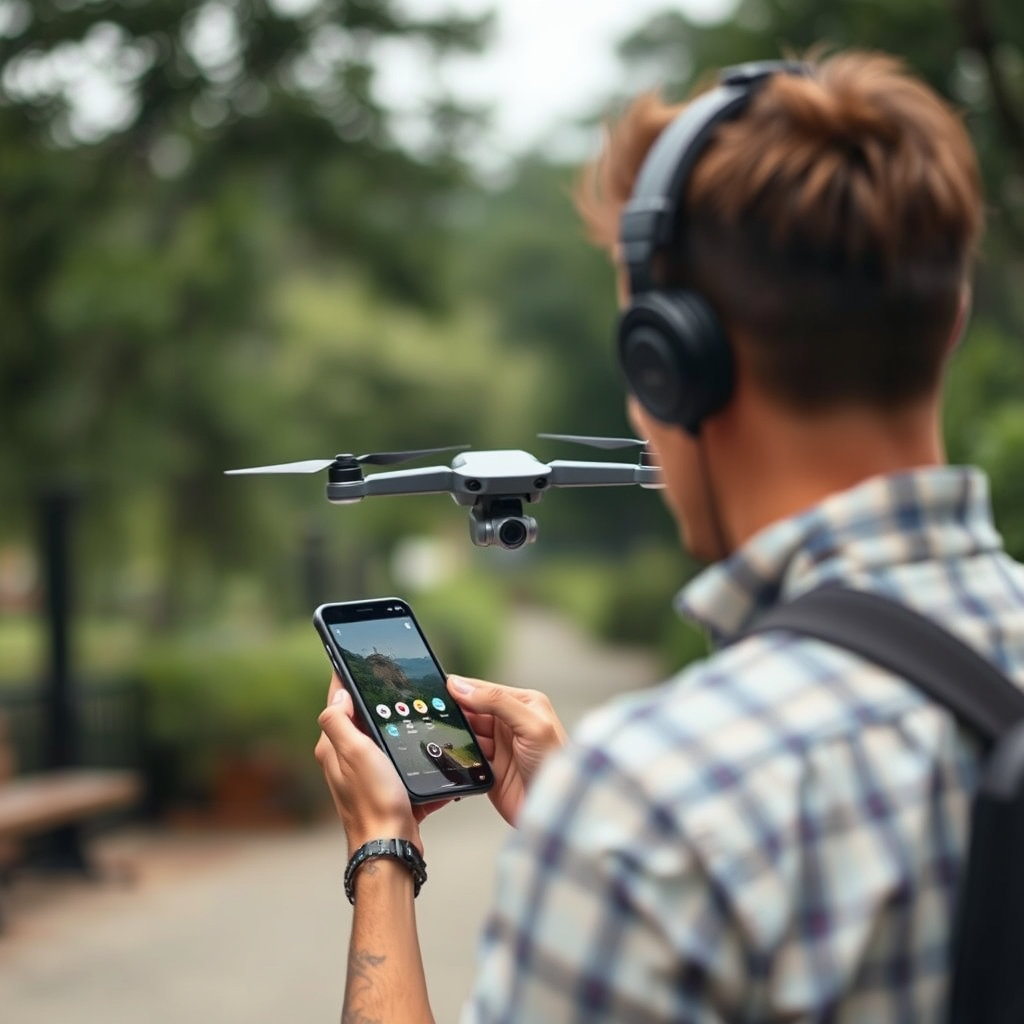
To efficiently access your flight logs via the DJI Fly app, begin by opening the app on your mobile device. Ensure that your drone is powered on and properly connected via Wi-Fi or a USB-C connection. Once connected, tap on the flight records icon, typically located on the main interface, which resembles a small book or notebook. This will lead you to a detailed overview of your flight logs.
Within the flight records section, you will find a list of your recent flights, displayed chronologically. Each entry includes essential details like flight duration, distance, and the date of the flight. Tapping on a specific flight will provide even more granular data, such as GPS coordinates, altitude, and battery usage statistics. This data can be invaluable for tracking your flying habits, assessing battery health, and improving your piloting skills.
Additionally, the DJI Fly app offers a user-friendly interface, making it easy to navigate through your logs. You can filter your flights by date or specific drones if you operate multiple models, allowing for a streamlined review process.
Accessing Logs with DJI Assistant 2

For those who prefer a desktop experience, accessing your drone logs via DJI Assistant 2 is a straightforward process. Begin by downloading and installing the DJI Assistant 2 software from the DJI official website. Once installed, connect your drone to your computer using a USB cable. It’s essential to use a reliable cable to ensure a stable connection.
Upon connecting, launch the DJI Assistant 2 application. On the main interface, you will see various options related to your drone’s settings and maintenance. Click on the “Flight Records” option to access a comprehensive list of your flight logs. Similar to the DJI Fly app, you will find detailed information on each flight, including timestamps, distances, and battery performance.
One of the advantages of using DJI Assistant 2 is the ability to download logs to your computer for offline analysis. This feature is particularly useful for those who wish to conduct a more in-depth analysis of their flying patterns or maintain records for regulatory purposes.
Understanding Flight Logs
To effectively utilize your flight logs, it’s crucial to understand the types of data recorded. Flight logs typically include critical information such as GPS coordinates, altitude, flight time, distance traveled, and battery consumption. Each log entry provides a snapshot of your flight, allowing you to evaluate performance and identify areas for improvement.
For example, by examining GPS coordinates, you can assess whether you are flying within regulated airspace or how frequently you venture into restricted zones. Monitoring flight time and distance can help you gauge the health of your drone’s battery, leading to more informed decisions about charging and maintenance. Furthermore, reviewing your logs can help you recognize patterns in your flying style, such as frequent abrupt maneuvers or extended hovering, which may indicate the need for further training.
Interpreting this data can enhance your flying skills significantly. For instance, if you notice frequent battery drain during certain types of maneuvers, you might adjust your flying technique to preserve battery life. By regularly reviewing and analyzing your flight logs, you can continuously improve your skills and ensure a safer flying experience.
Troubleshooting Access Issues
While accessing your DJI drone logs is generally straightforward, you may encounter occasional issues. If you find that you cannot connect to the DJI Fly app or DJI Assistant 2, first check for any available app updates. Keeping your software updated ensures that you have the latest features and bug fixes that enhance performance.
Another common issue could be software compatibility. Ensure that your mobile device or computer meets the necessary system requirements for running the DJI Fly app or DJI Assistant 2. If you are using a mobile device, you may also want to check that your device’s operating system is current.
If the drone fails to connect, verify that it is powered on, and check the USB cable for any signs of damage. If you are using a Wi-Fi connection, ensure that both your mobile device and drone are on the same network. Restarting both the app and your drone can often resolve connectivity issues as well.
Exporting Your Drone Log
Exporting your drone logs can be beneficial for record-keeping or detailed flight analysis. In the DJI Fly app, you can export logs by selecting the flight you wish to export and tapping on the export option, which is usually represented by an icon resembling an upward arrow. The logs are typically exported in a .csv or .txt format, making them easy to read and analyze.
Once exported, you can open these files in spreadsheet software such as Microsoft Excel or Google Sheets, allowing for deeper analysis of your flight patterns, battery usage, and more. This capability to analyze data outside of the app can provide insights that assist in optimizing your flying practices.
When exporting logs from DJI Assistant 2, the procedure is similar. Navigate to the flight record you wish to download, and select the export option. This functionality is particularly useful for professional drone operators who need to maintain detailed records for compliance with local regulations or for project documentation.
Keeping Your Logs Organized
Maintaining an organized record of your flight logs is essential for easy reference and regulatory compliance. Start by categorizing your logs based on different criteria, such as date, type of flight, or specific projects. Creating a structured folder system on your computer or cloud storage can facilitate quick access to specific logs when needed.
Additionally, consider maintaining a physical or digital logbook where you can jot down notes about each flight, including any issues encountered or insights gained. This practice not only aids in organization but also enhances your overall flying experience by providing a comprehensive record of your progress and learning.
The importance of keeping logs cannot be overstated, especially for commercial drone operators. Many regions require detailed flight records for compliance with aviation regulations, and having well-organized logs can simplify this process. Moreover, keeping accurate records can protect you in case of disputes or incidents, providing proof of adherence to safety protocols.
In summary, accessing and understanding your DJI drone logs is a vital aspect of being a responsible and skilled drone operator. By utilizing the DJI Fly app or DJI Assistant 2, you can unlock a wealth of data that will help you enhance your flying experience and ensure safety. Remember to regularly analyze your logs and keep them organized for optimal performance and compliance.
By following this simple guide, you can efficiently access your DJI drone logs and harness the power of your flight data. We encourage you to explore your logs today and discover how this information can enrich your flying experiences. Whether you’re a hobbyist or a professional, understanding your flight data is key to becoming a better pilot and ensuring safe operation.
Frequently Asked Questions
How do I access my DJI drone flight logs?
To access your DJI drone flight logs, you can use the DJI GO or DJI Fly app, depending on your drone model. Open the app and navigate to the “Profile” section, where you will find “Flight Records.” Here you can view detailed logs of your flights, including duration, distance, and even a map of your flight path. If you need more detailed logs, you can also download them from the app to your device for further analysis.
Why can’t I find my DJI drone logs in the app?
If you can’t find your DJI drone logs in the app, it may be due to a few reasons. Ensure that your app is updated to the latest version, as older versions may have bugs that affect log accessibility. Additionally, if you are using a different device than the one you originally used for flying, the logs may not sync properly. Check your app settings and ensure that you are logged into the correct DJI account associated with your drone.
What information is included in my DJI drone flight logs?
DJI drone flight logs typically include a variety of information such as flight duration, distance traveled, maximum altitude, GPS coordinates, and battery usage. Additionally, you can view details about the takeoff and landing locations, as well as any errors or warnings that occurred during the flight. This data can be invaluable for tracking your flying habits, ensuring safety, and improving your piloting skills.
How can I back up my DJI drone logs?
To back up your DJI drone logs, you can export them directly from the DJI GO or DJI Fly app. Simply navigate to your flight records, select the flights you wish to back up, and use the export option to save them as a CSV file or other formats, depending on the app. Additionally, consider manually backing up the logs stored on your device’s storage by transferring them to a computer or cloud storage service for safekeeping.
Which DJI drones support flight log access through the app?
Most modern DJI drones, including the Mavic series, Phantom series, and the Inspire series, support flight log access through the DJI GO or DJI Fly app. Some older models may have limited logging capabilities, so it’s essential to check the specifications of your particular drone model. To maximize your experience, always ensure that you are using the latest app version and your drone’s firmware is updated.
References
- https://www.dji.com/downloads/faq/what-is-a-flight-log
- DJI Support for Products Repairs Services and Technical Help – DJI United States
- https://www.wired.com/story/dji-drone-logs-privacy/
- https://www.techradar.com/how-to/how-to-access-your-drone-flight-logs
- https://www.reuters.com/technology/dji-drone-logs-privacy-issues-2022-04-18/
- https://www.sciencedirect.com/science/article/pii/S2351978922001398
