
To connect the DJI app to your drone, first, ensure that both the drone and your mobile device are powered on and within range. Next, download the latest version of the DJI app compatible with your specific drone model. Following the on-screen instructions will help you establish a connection, allowing you to control your drone and access its myriad features. This guide will walk you through the entire process, ensuring a seamless connection between your drone and mobile device while maximizing your flying experience.
Understanding the DJI App
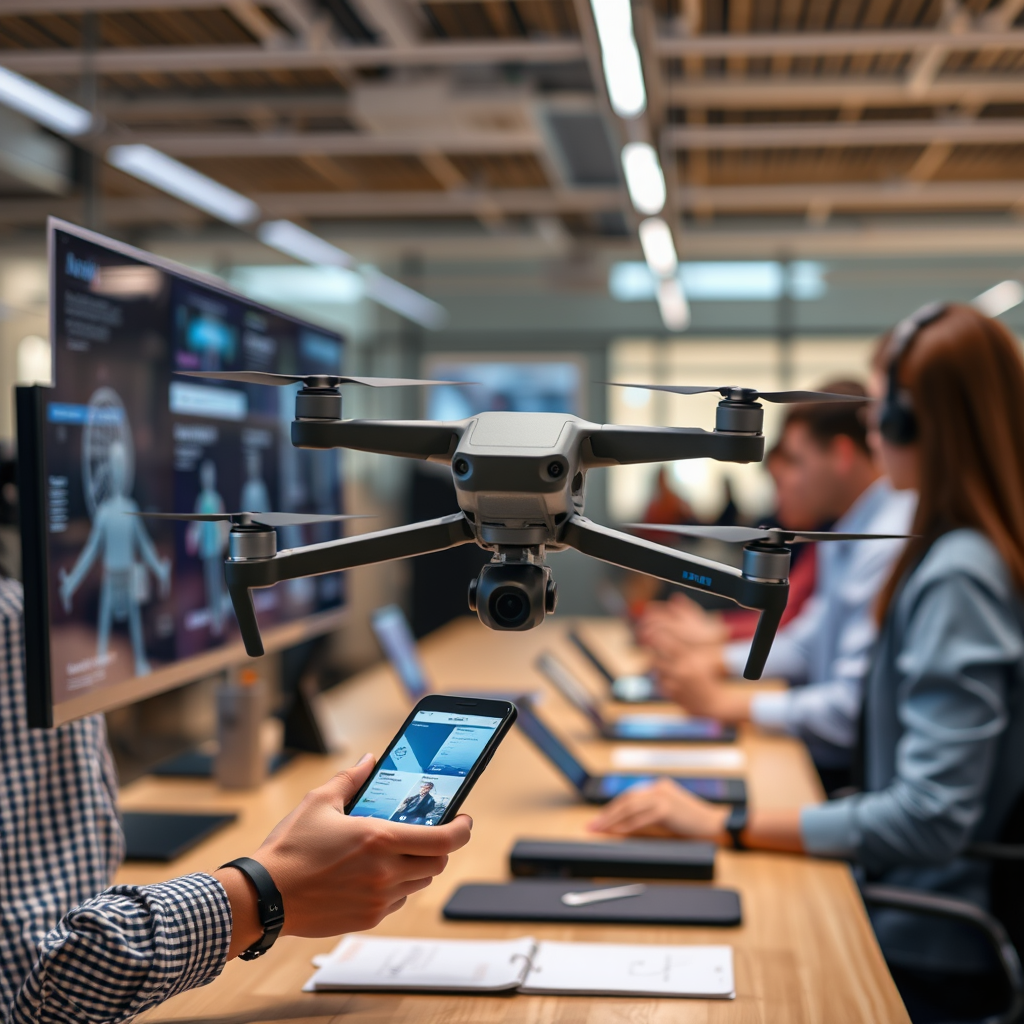
The DJI app serves as the central hub for drone operators, providing a user-friendly interface that simplifies the control of your drone. It is available for both iOS and Android devices and is tailored to various DJI models, including the Mavic, Phantom, and Spark series. The app integrates numerous functionalities that enhance your flying experience. Key features include live video streaming, which allows you to see what your drone sees in real-time, and flight planning tools that let you map out your route before takeoff. Additionally, the app offers camera settings adjustments, enabling you to modify parameters such as ISO, shutter speed, and white balance to capture stunning aerial photography and videography.
The DJI app is continually updated, so users should frequently check for new features and improvements. Engaging with the app not only enhances your ability to pilot your drone effectively but also opens up opportunities for creative aerial content creation.
Preparing Your Drone
Proper preparation of your drone is crucial for establishing a successful connection with the DJI app. Start by ensuring that your drone’s firmware is up to date. Firmware updates often include enhancements and bug fixes that improve performance and connectivity. You can check for updates through the DJI app itself, which will prompt you if an update is available.
Additionally, ensure that your drone and remote controller are fully charged. Low battery levels can interrupt the connection process or cause the drone to behave unexpectedly during flight. It’s advisable to charge both devices before a flying session, and consider investing in spare batteries for extended flying time. By following these preparatory steps, you will minimize potential issues and maximize the enjoyment of your drone experience.
Setting Up the Mobile Device
Setting up your mobile device is a straightforward process that ensures you are ready to connect to your drone. First, download the DJI app from the App Store for iOS devices or the Google Play Store for Android devices. It is essential to download the version of the app that corresponds to your specific drone model, as functionality may vary.
Once the app is installed, you will need to create a DJI account if you do not already have one. This account will allow you to access all features, updates, and support resources. Logging in to your account not only personalizes your experience but also ensures that you receive notifications about firmware updates and new app features. After setting up your account, you are well-equipped to proceed with connecting the drone.
Connecting via Wi-Fi
Connecting your drone to the DJI app via Wi-Fi is a crucial step in establishing control. Begin by turning on both your drone and remote controller. Ensure they are powered up and ready for operation. Open the DJI app on your mobile device, and it will automatically search for your drone.
Select your drone model when prompted, and follow the on-screen instructions to connect via Wi-Fi. You may need to enter a password, typically printed on the drone or in the user manual, to finalize the connection. Once connected, the app will display the live feed from the drone’s camera, indicating that the connection has been successful. This step is vital for accessing the various features and functionalities offered by the DJI app.
Troubleshooting Common Issues
Even with careful preparation, some users may encounter issues when trying to connect the DJI app to their drone. If the app fails to establish a connection, the first step is to check your Wi-Fi settings. Ensure that your mobile device is connected to the correct network generated by the drone. Sometimes, interference from other Wi-Fi networks can impede the connection.
If issues persist, consider restarting both your drone and mobile device. A simple reboot often resolves temporary glitches that may be preventing the connection. Additionally, ensure that your drone is within the recommended range of your mobile device, as distance can impact connectivity. If problems continue, consulting the DJI support page or user forums can provide further assistance and insights from other drone operators.
Exploring App Features
Once you have successfully connected the DJI app to your drone, take the time to explore its extensive features. Familiarizing yourself with the app’s interface is critical for maximizing your flying experience. The app includes various flight modes, such as GPS mode, sport mode, and follow-me mode, each designed for different flying styles and scenarios.
Additionally, the camera controls within the app allow for adjustments that can significantly enhance your aerial photography and videography. Features like intelligent flight modes, including waypoints and orbit mode, provide creative options for capturing unique shots. Furthermore, the app includes built-in tutorials and guides, which can be invaluable for both novice and experienced drone pilots. Engaging with these resources will help you get the most out of your drone and its capabilities.
Safety and Compliance
Safety should always be a priority when flying your drone. The DJI app includes several safety features designed to help drone pilots comply with local regulations and operate their drones responsibly. For instance, geofencing restricts flights in sensitive areas such as airports or crowded urban environments, preventing accidental incursions into restricted airspace.
Additionally, the return-to-home function is a critical safety feature that ensures your drone can autonomously return to its takeoff point in the event of a lost connection or low battery. Familiarizing yourself with these safety features and staying informed about local regulations are essential steps in promoting safe and responsible drone operation. Always prioritize safety to protect yourself, others, and the integrity of your drone.
Summarizing these steps will help you effectively connect the DJI app to your drone and take full advantage of its features. By ensuring that both your drone and mobile device are prepared, and by following the connection process carefully, you can enjoy a seamless flying experience. Keep your app updated and refer to the official DJI support page for any specific inquiries or advanced troubleshooting. Happy flying!
Frequently Asked Questions
How do I connect the DJI app to my drone for the first time?
To connect the DJI app to your drone for the first time, start by downloading the appropriate DJI app (like DJI GO 4 or DJI Fly) from the App Store or Google Play. Ensure your drone and remote controller are fully charged, then power them on. Connect your mobile device to the remote controller via USB or Wi-Fi, depending on the model. Open the DJI app, and it should automatically detect the drone, allowing you to follow the on-screen prompts to complete the connection.
Why won’t my DJI app connect to my drone?
If your DJI app won’t connect to your drone, check several common issues. First, ensure that both the drone and the remote controller are powered on and within range. Verify that your mobile device’s Bluetooth and Wi-Fi settings are enabled, as some drones require a Wi-Fi connection. Additionally, make sure you have the latest version of the DJI app installed, as outdated software can cause connectivity problems.
What should I do if the DJI app keeps disconnecting from my drone?
If the DJI app keeps disconnecting from your drone, start by checking for interference from other electronic devices. Make sure your mobile device is not running too many background applications that could affect performance. Additionally, ensure that both your drone and remote controller have the latest firmware updates installed, as updates can resolve connectivity issues. If the problem persists, consider resetting the connection by restarting both the drone and the app.
Which DJI app do I need to connect to my specific drone model?
The DJI app you need depends on your specific drone model. For example, the DJI GO 4 app is required for models like the Phantom 4 and Mavic Pro, while the DJI Fly app is used for newer models like the Mavic Mini and Air 2. To ensure you’re using the correct app, refer to the user manual of your drone or visit the DJI website for a comprehensive list of compatible apps for each drone model.
What are the best practices for maintaining a stable connection between the DJI app and my drone?
To maintain a stable connection between the DJI app and your drone, start by keeping your firmware and app updated to the latest versions. Always fly in open areas away from large metal objects or electronic signals that could cause interference. Regularly check the cable connecting your mobile device to the remote controller for any damage, and ensure your device’s battery is sufficiently charged to prevent interruptions during flight. Lastly, consider utilizing a mobile device holder or mount to keep the device secure and within range.
References
- https://www.dji.com/us/downloads/user-manuals
- DJI Support for Products Repairs Services and Technical Help – DJI Global or Other Regions
- https://www.researchgate.net/publication/327935205_The_use_of_drones_in_aerial_photography
- https://www.nytimes.com/2021/05/12/technology/drones-remote-work.html
- https://www.sciencedirect.com/science/article/pii/S2352938517301071
- https://www.wired.com/story/how-to-use-drones/
