
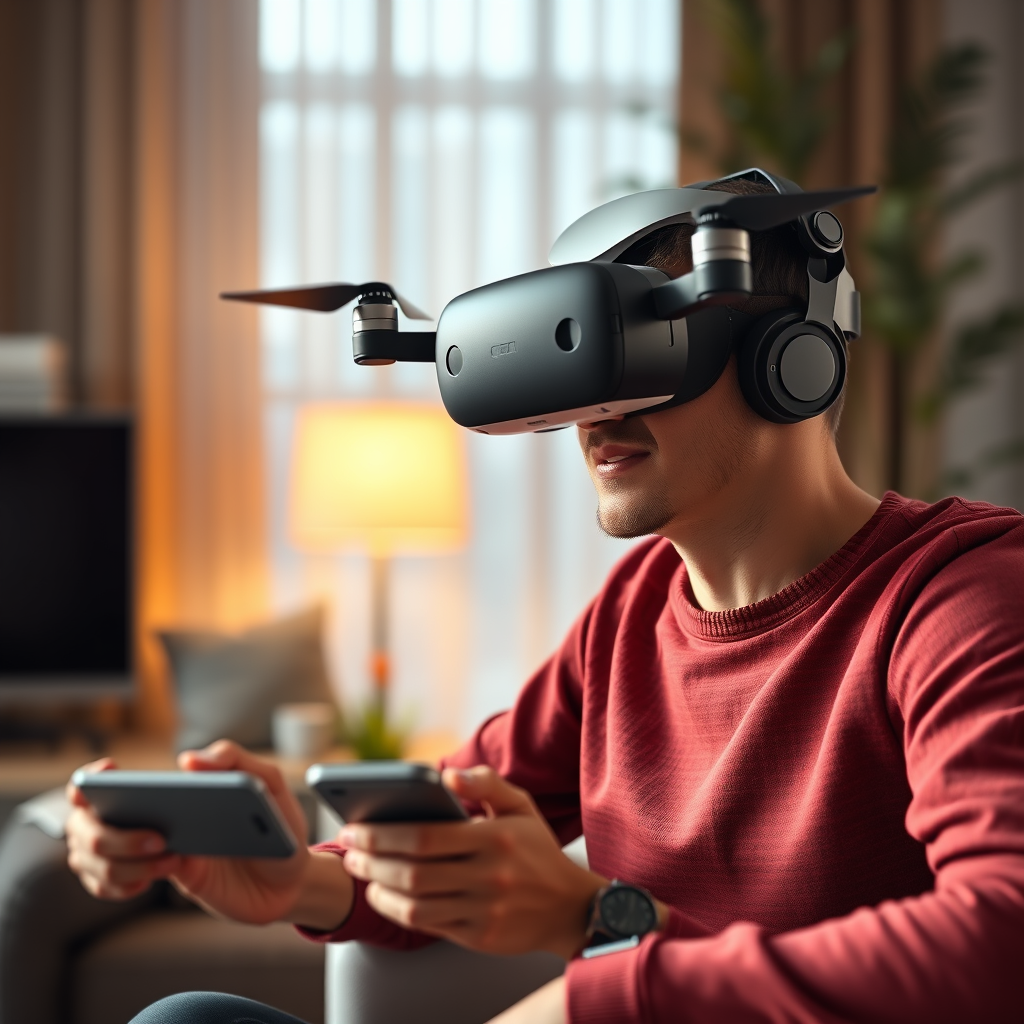
Yes, you can use the Oculus Quest 2 with a DJI drone, but it requires specific setups and applications. This combination allows for an immersive flying experience, enhancing your aerial views by placing you virtually within the cockpit of your drone. This can fundamentally change the way you perceive aerial photography and videography. In this guide, we’ll delve into the compatibility of these devices, the required applications, the setup process, tips for enhancing your experience, potential limitations, and essential safety considerations to ensure you enjoy this innovative technology responsibly.
Understanding Compatibility
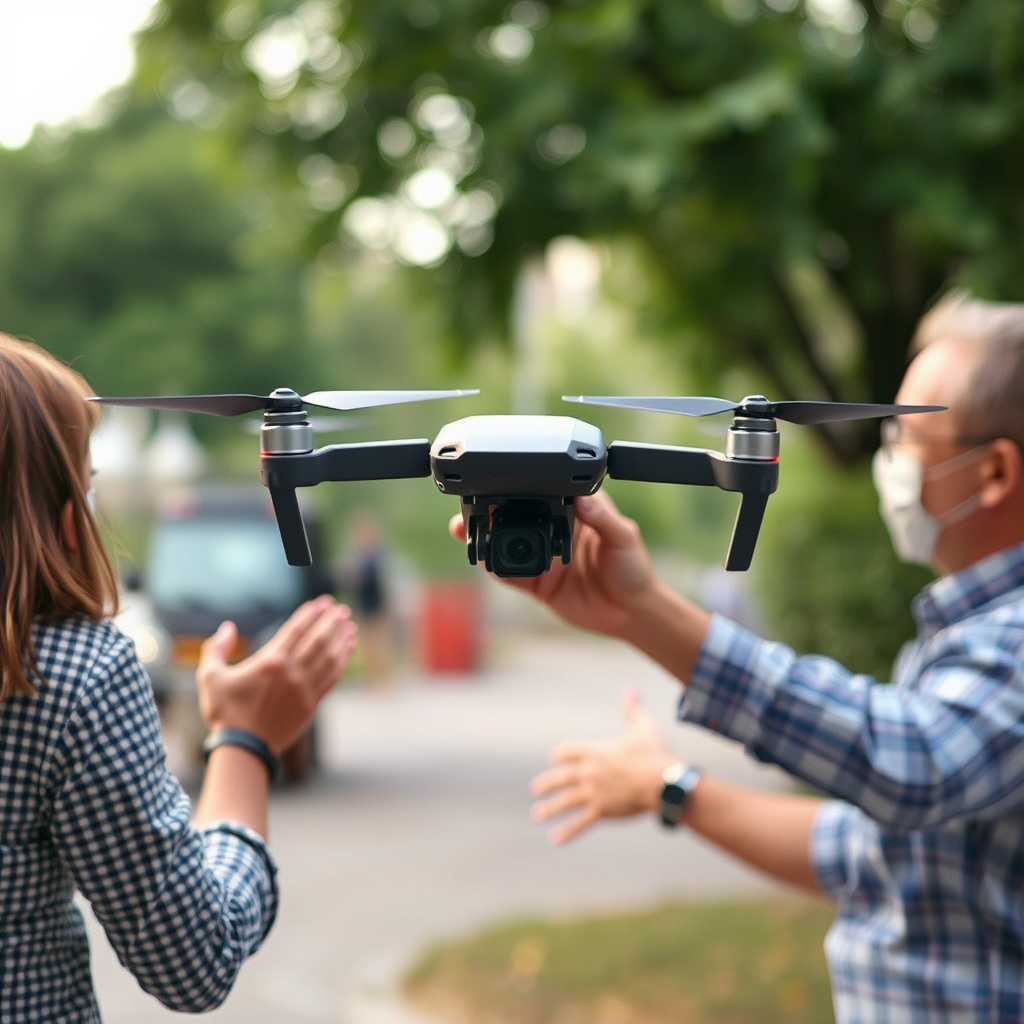
The Oculus Quest 2 is a standalone virtual reality headset designed to provide immersive gaming and entertainment experiences without the need for a computer or external sensors. On the other hand, DJI drones, such as the popular Mavic series or the Phantom series, come equipped with sophisticated control systems and software to manage flight operations. It is crucial to understand that while both devices are technologically advanced, they operate on different platforms.
For successful integration, you need to ensure that both the Oculus Quest 2 and your DJI drone are compatible with third-party applications that facilitate VR streaming. Many DJI drones support various apps that can stream the live feed from the drone’s camera to your smartphone or tablet, which can then be transmitted to the Oculus Quest 2. This capability opens up new avenues for drone enthusiasts, enabling them to experience flight in a fully immersive environment.
Required Applications
To bridge the connection between the Oculus Quest 2 and your DJI drone, you’ll need specific applications designed for VR streaming. One popular option is DroneVR, which allows users to connect their drones to VR headsets seamlessly. This app is particularly effective with DJI drones, as it can convert the live camera feed into a format suitable for VR display.
To get started, download and install the DroneVR app on your smartphone or tablet, ensuring that your device is compatible with the app. Other apps may include Litchi or FPV Drone that may offer similar functionality, but ensure you review user feedback to select the best option for your needs. It’s essential to keep your apps updated to benefit from the latest features and improvements that enhance the VR experience.
Setting Up Your Devices
Setting up your Oculus Quest 2 with a DJI drone involves several crucial steps to ensure a smooth experience. First, connect your DJI drone to your smartphone or tablet following the manufacturer’s guidelines. This typically means using the DJI Fly app or the DJI GO app, depending on your drone model, to establish a connection and configure the drone’s settings.
Next, launch the VR app (e.g., DroneVR) on your smartphone or tablet. Follow the prompts to pair your Oculus Quest 2 with the streaming device. This usually involves connecting your smartphone or tablet to the Oculus Quest 2 via casting options or using a direct Wi-Fi connection. Once paired, you should be able to view the drone’s live feed within your headset, allowing for an immersive flying experience.
Make sure to test the connection and stability before taking off. It’s advisable to conduct a few practice flights in a controlled environment to get used to the VR interface and controls.
Enhancing Your Experience
To truly maximize your immersive experience with the Oculus Quest 2 and DJI drone, consider adjusting camera settings on your drone for optimal video quality. This might include adjusting resolution settings, frame rates, and exposure levels to ensure that the visuals you see through the headset are sharp and clear. High-definition video feeds can significantly enhance the realism of your flying experience.
Additionally, explore the various flight modes available on your DJI drone. Many models come equipped with features like Waypoints, Follow Me mode, and ActiveTrack, which can add excitement and functionality to your flights. By experimenting with these modes, you can fully utilize the VR capabilities and create stunning aerial footage.
Furthermore, consider investing in accessories such as a comfortable head strap for the Oculus Quest 2, which can help reduce fatigue during extended flying sessions, making your experience even more enjoyable.
Potential Limitations
While the integration of Oculus Quest 2 and DJI drones can provide exhilarating experiences, there are potential limitations to be aware of. One significant concern is latency, which refers to the delay between the drone’s camera feed and the display in your headset. Factors such as distance between the drone and the controller, environmental interference, and the quality of your Wi-Fi connection can contribute to this issue. Latency can hinder your ability to control the drone effectively, so it’s important to conduct test flights to understand the responsiveness of your setup.
Moreover, it’s critical to maintain awareness of your surroundings while using VR. When immersed in a virtual environment, it can be easy to lose sight of the physical world around you. Always ensure that you have a clear line of sight with the drone and be cautious of obstacles, people, and animals nearby.
Safety Considerations
Operating a DJI drone in VR mode comes with its own set of safety considerations. Familiarize yourself with local regulations regarding drone operation, particularly those that pertain to flying in first-person view (FPV) mode. In many jurisdictions, it is a legal requirement to have a visual line of sight with your drone, which can be challenging when using a VR headset.
Additionally, consider using a spotter—a friend or fellow enthusiast—who can keep an eye on the drone’s physical location while you are immersed in the VR experience. This person can alert you to any potential hazards or changes in the environment that you might not be aware of while flying.
Before your flights, ensure that your drone’s firmware is up to date, and conduct regular maintenance checks. Pay attention to battery levels and flight time, as extended VR flights can consume more power than typical operations.
In summary, using the Oculus Quest 2 with a DJI drone can provide an exciting and immersive experience, provided you follow the necessary steps for setup and safety. Make sure to explore the available applications, enhance your flight experience with camera adjustments and flight modes, and remain vigilant about safety to enjoy your aerial adventures responsibly. With the right preparations, you can take your drone flights to new heights, both literally and figuratively.
Frequently Asked Questions
Can I use Oculus Quest 2 to view live feeds from my DJI drone?
Yes, you can use the Oculus Quest 2 to view live feeds from your DJI drone, but it requires additional software. Applications like DJI’s Fly app or third-party options like DroneVR can help you connect your headset to your drone’s camera feed. Ensure that your drone is compatible with the software and that you have a stable Wi-Fi connection for optimal performance.
What are the best ways to connect my DJI drone to Oculus Quest 2?
The best way to connect your DJI drone to the Oculus Quest 2 is through a combination of casting or streaming software. First, you need to ensure your drone has live streaming capabilities, then utilize apps like Skyward or DroneVR. These apps allow you to cast the drone’s camera feed to the Oculus, creating an immersive flying experience. Always check for app compatibility with your specific drone model.
Why would I want to use Oculus Quest 2 with my DJI drone?
Using Oculus Quest 2 with your DJI drone allows for an immersive flying experience, offering a first-person view (FPV) that enhances piloting and aerial photography. This combination enables you to enjoy the scenic views from your drone’s perspective, making it easier to capture stunning visuals. Additionally, it can provide a unique way to practice drone flying skills in a virtual environment.
Which DJI drones are compatible with Oculus Quest 2 for live streaming?
Many DJI drones are compatible with Oculus Quest 2 for live streaming, including popular models like the DJI Mavic Air 2, Mavic Mini, and Phantom 4 series. Compatibility depends on the software you use for streaming, so ensure the app supports your drone model. Always refer to the manufacturer’s documentation or app guidelines for the latest compatibility updates and features.
How do I set up my Oculus Quest 2 to work with my DJI drone?
To set up your Oculus Quest 2 with your DJI drone, start by downloading a compatible app, such as DJI Fly or DroneVR, on a compatible device. Connect your drone to the app and ensure it is in live streaming mode. Then, use the casting feature on the app to stream the drone’s camera feed to the Oculus Quest 2. Follow the in-app instructions for a seamless setup, and make sure both devices are on the same Wi-Fi network for optimal connectivity.
References
- https://en.wikipedia.org/wiki/Oculus_Quest_2
- https://www.theverge.com/2021/5/10/22428439/dji-drone-oculus-quest-2-vr-goggles
- https://www.dji.com/education/learn/drone-education
- https://www.techradar.com/news/how-to-use-your-oculus-quest-2-with-a-drone
- https://www.polygon.com/2021/8/4/22607066/oculus-quest-2-vr-simulator-drone-fpv-setup
- https://www.faa.gov/uas/
- https://www.nasa.gov/
- https://www.sciencedirect.com/science/article/pii/S2351978919310190
