
Yes, you can delete data on a DJI drone, and there are several methods available for doing so based on the type of data you wish to remove. Whether you want to clear flight logs or delete captured media files, it’s essential to understand the available options to effectively manage your drone’s storage. This article provides a comprehensive guide on how to delete flight logs, photos, and videos from your DJI drone, allowing you to maintain control over your data storage while optimizing performance.
Understanding Data Types on DJI Drones
DJI drones store various types of data, primarily categorized into flight logs and media files.
– Flight Logs: These records document every flight your drone undertakes, capturing critical data such as flight duration, altitude, distance traveled, battery usage, and GPS coordinates. Flight logs are essential for tracking performance, monitoring maintenance needs, and ensuring compliance with local regulations. However, they can accumulate over time, consuming valuable storage space.
– Media Files: These include photos and videos captured during your flights. As high-resolution images and 4K videos can quickly fill up storage, managing these files is vital for maintaining sufficient space for new content. Organizing and deleting unnecessary media files not only frees up storage but also helps in keeping your media library manageable and efficient.
How to Delete Flight Logs
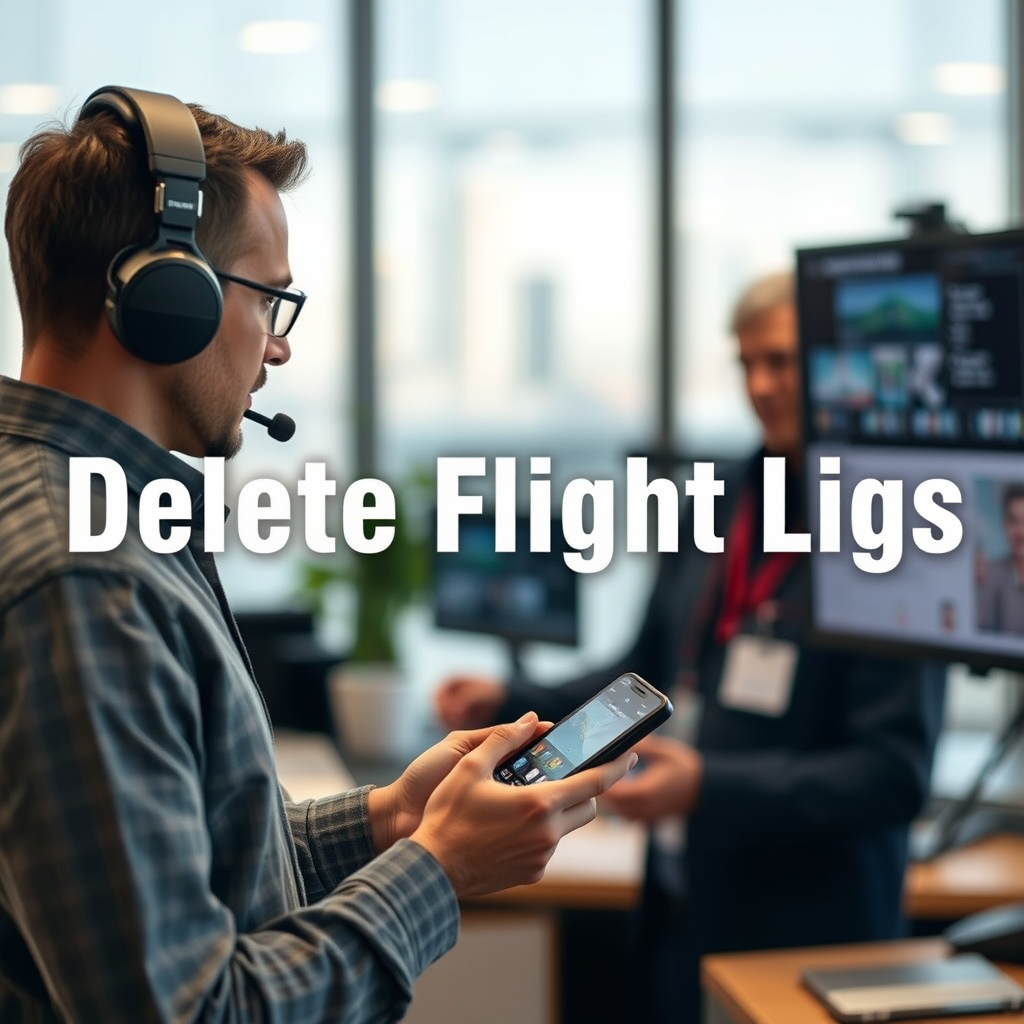
Deleting flight logs from your DJI drone can be accomplished through the DJI Fly or Go app. Here’s how to do it:
– Accessing the DJI Fly or Go App: Start by launching the app on your mobile device. Ensure that your drone is connected, either via Wi-Fi or USB connection, to access its data. Navigate to the flight records section, where you will find a list of your past flights.
– Deleting Logs: Within the flight records, you will see options to view detailed information about each flight. To delete specific logs, select the flights you wish to remove and follow the in-app prompts. If you want to clear all flight logs at once, look for an option to delete all records, which might be located in the settings or options menu. Confirm your choice, and the selected logs will be permanently deleted from your device.
Deleting Media Files from Your Drone
There are two primary methods for deleting media files from your DJI drone: using the DJI app and accessing the SD card directly.
– Using the DJI App: Open the app and navigate to the media section. Here, you will find your photos and videos listed. You can preview each file, making it easier to determine which ones you want to delete. Select the unwanted media files and choose the delete option. This method is straightforward and helps keep your media library organized without needing additional devices.
– Directly from the SD Card: For a more comprehensive deletion process, remove the SD card from your drone and connect it to a computer using a card reader. Once connected, navigate to the folder containing your media files. You can select and delete files in bulk, which is particularly useful for clearing large amounts of data quickly. After deletion, safely eject the SD card and insert it back into your drone to ensure the changes are reflected.
Factory Resetting Your DJI Drone
If you’re looking to erase all data and restore your drone to its factory settings, a factory reset might be the best option.
– When to Consider a Factory Reset: You might consider a factory reset if you plan to sell your drone, experience performance issues, or want to eliminate all saved data for personal privacy reasons.
– Steps for Performing a Reset: To perform a factory reset, open the DJI Fly or Go app and connect your drone. Navigate to the settings menu, usually represented by a gear icon. Look for an option labeled “Reset” or “Factory Reset.” Follow the prompts to confirm your decision. Keep in mind that this action will delete all your flight logs, media files, and settings, reverting the drone to its original state. Always ensure you have backed up any important data before proceeding.
Important Considerations Before Deleting Data
Before deleting any data from your DJI drone, there are essential considerations to keep in mind.
– Backing Up Important Files: It is advisable to back up critical files before deletion. Whether it’s flight logs needed for regulatory compliance or cherished media files, ensure you have copies stored in a safe location, such as an external hard drive or cloud storage.
– Understanding Data Recovery Limitations: Once data is deleted, recovery may not be possible. While some software may claim to recover deleted files, success isn’t guaranteed, especially for media files. Therefore, weigh your options carefully and ensure you are certain before committing to deletion.
Troubleshooting Common Issues
While deleting data from your DJI drone is generally straightforward, you may encounter challenges.
– Problems with Deletion: If you experience errors during the deletion process, ensure that your app is updated to the latest version and that your drone’s firmware is current. Restarting the app or your drone can also resolve minor glitches. If the issue persists, consult the user manual for specific troubleshooting steps tailored to your model.
– Contacting DJI Support: If you are unable to delete data despite following the suggested methods, it may be time to contact DJI support. They can provide assistance tailored to your situation and help resolve any technical issues you may be facing.
In summary, managing data on a DJI drone is crucial for optimal performance and storage efficiency. By understanding the types of data available, utilizing the app for deleting flight logs and media files, and knowing when to perform a factory reset, you can ensure that your drone’s data is well-organized. Remember to back up important files and be mindful of recovery limitations before proceeding with deletions. Take a moment to review your drone’s data today and decide what to delete based on your current needs, ensuring a smoother flying experience in the future.
Frequently Asked Questions
Can I delete photos and videos from my DJI drone?
Yes, you can delete photos and videos from your DJI drone directly using the DJI Go or DJI Fly app. Simply connect your drone to the app, navigate to the media library, select the files you want to delete, and confirm the deletion. This process helps you manage storage space effectively, especially if you’re capturing high-resolution footage.
How do I delete data from a DJI drone’s SD card?
To delete data from a DJI drone’s SD card, first, remove the SD card from the drone and insert it into a card reader connected to your computer. You can then open the file explorer, select the files or folders you want to delete, and press the delete key. Alternatively, you can also format the entire SD card to erase all data quickly, but be cautious as this action cannot be undone.
Why should I delete old flight logs from my DJI drone?
Deleting old flight logs from your DJI drone can help improve the performance of the DJI app and free up storage space on your device. Over time, accumulating flight logs can lead to slower app response times and difficulties in managing new flights. Regularly clearing these logs ensures that you have a smoother experience when planning future flights.
What is the best way to ensure data is permanently deleted from my DJI drone?
The best way to ensure that data is permanently deleted from your DJI drone is to format the SD card in the drone’s settings. This process overwrites existing data, making it much harder to recover, though it’s important to note that no method is entirely foolproof. For added security, consider using data-wiping software before formatting the card to ensure complete data erasure.
Which DJI drones allow you to delete data directly from the device?
Most modern DJI drones, such as the Mavic series, Phantom series, and the Mini series, allow you to delete data directly from the device through the associated mobile app. This feature is convenient as it lets you manage your files without needing to connect to a computer, making it easier to free up space on-the-go after each flight session.
References
- https://www.dji.com/uk/support/faq/how-to-delete-data-on-dji-drone
- https://www.ncbi.nlm.nih.gov/pmc/articles/PMC7544577/
- https://www.reuters.com/article/us-dji-drone-data-idUSKBN2A00N6
- https://www.wired.com/story/dji-drone-data-privacy-concerns/
- https://www.abc.net.au/news/2020-01-20/dji-drone-privacy-data-collection/11889360
- https://www.bbc.com/news/technology-51158532
