
If you’re experiencing difficulties connecting to your Tello drone, the most common remedies include verifying your Wi-Fi settings and ensuring your device is compatible with the Tello app. These initial steps can often resolve connection issues, allowing you to enjoy seamless flying experiences. However, if problems persist, there are several other troubleshooting measures you can take to get your drone operational again.
Check Your Wi-Fi Connection
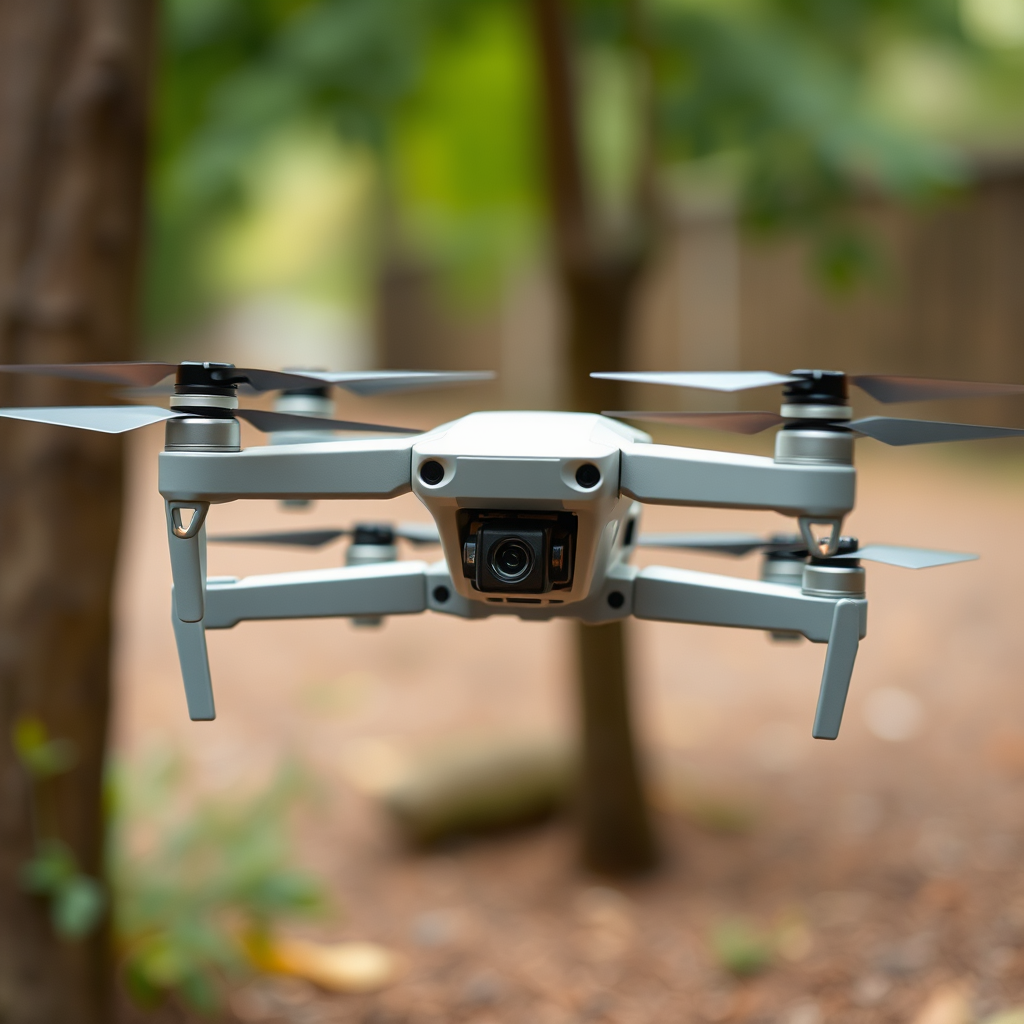
The foundation of a successful connection to your Tello drone lies in establishing a reliable Wi-Fi link. First, ensure that your Tello drone is powered on and within the operational range of your mobile device—typically around 100 meters. A common oversight is failing to connect your mobile device to the Tello drone’s Wi-Fi network, which is distinct from your home or office Wi-Fi. The Tello creates its own network, which usually appears as “TELLO-XXXXXX,” where “XXXXXX” represents a unique identifier.
To confirm that your device is connected, navigate to your device’s Wi-Fi settings and look for this network. If you don’t see it, try resetting the drone and attempting the connection again. Additionally, make sure that your Wi-Fi settings are not set to “Airplane Mode,” as this can prevent any wireless communication.
Restart Your Devices
Sometimes, a simple restart can work wonders for device connectivity. Power cycling the Tello drone by turning it off and then on again can help reset any temporary glitches that may be affecting the connection. This action refreshes the drone’s internal systems and may establish a more stable link with your mobile device.
Similarly, restarting your mobile device can clear any cached data or temporary settings that might interfere with the connection to the Tello drone. After both devices are restarted, attempt to reconnect by ensuring that you are connected to the Tello’s Wi-Fi network.
Update the Tello App
Keeping your Tello app up to date is crucial for optimal performance and connectivity. Firmware updates often include bug fixes and improvements that may resolve connectivity issues. To ensure you have the latest version of the Tello app, visit the App Store (for iOS users) or Google Play Store (for Android users) and check for updates. If an update is available, download and install it.
In addition to updating the app, it’s also important to check for any firmware updates for the Tello drone itself. These updates can enhance compatibility with your mobile device and improve overall functionality. To check for firmware updates, open the Tello app and navigate to the settings menu, where you should find an option for firmware updates.
Reset the Tello Drone
If you continue to encounter connection problems after trying the previous troubleshooting steps, performing a factory reset on the Tello drone may be necessary. A factory reset erases all prior configurations and sets the drone back to its original state, potentially resolving any persistent issues.
To reset your Tello drone, refer to the manufacturer’s instructions, which typically involve holding down the power button for a specific duration or using the app’s settings menu. After resetting, reconfigure the drone and attempt to connect once again. Always remember to back up any important settings or data before performing a reset.
Check Device Compatibility
Device compatibility plays a critical role in successfully connecting to the Tello drone. Not all smartphones or tablets are capable of running the Tello app effectively. Before troubleshooting further, verify that your mobile device meets the system requirements specified by the Tello app. As a general guideline, ensure your device is running at least iOS 9.0 or Android 4.4 and has sufficient RAM and processing power.
If your device meets these requirements but you still face connection issues, consider testing the connection with another smartphone or tablet. This step can help identify whether the problem lies with your original device or the Tello drone itself.
Interference and Environment Factors
Environmental factors can significantly impact the connectivity between your mobile device and the Tello drone. Areas with heavy Wi-Fi interference or numerous electronic devices in close proximity can disrupt the signal. For optimal performance, it is advisable to fly your Tello drone in open spaces where there are minimal obstacles and electronic devices, such as routers or microwaves, that may cause interference.
If possible, choose a location that is relatively free of obstructions, such as trees or buildings, which can block the signal. Testing the connection in a more open area can often yield better results and allow you to enjoy the Tello drone’s full capabilities without interruptions.
In conclusion, if you find yourself unable to connect to your Tello drone, following these troubleshooting tips can help you quickly identify and resolve the issue. Start by verifying your Wi-Fi connection and ensuring your device is compatible. If problems persist, consider restarting your devices, updating the Tello app, or even resetting the drone itself. Should all else fail, do not hesitate to reach out to customer support for additional assistance. By taking these steps, you can enhance your flying experience and enjoy the remarkable capabilities of your Tello drone.
Frequently Asked Questions
Why can’t I connect to my Tello drone via Wi-Fi?
If you’re struggling to connect to your Tello drone via Wi-Fi, the issue may stem from a weak signal or interference. Ensure that your smartphone or tablet is within close range (about 10-30 feet) of the drone and that there are no other Wi-Fi networks competing for the signal. Additionally, check that your device is connected to the correct Tello Wi-Fi network (usually named “TELLO-XXXXXX”) and that airplane mode is disabled on your device.
What should I do if my Tello drone keeps disconnecting during flight?
Frequent disconnection issues during flight can be caused by several factors, including low battery levels or interference from other devices. First, ensure your drone’s battery is fully charged and check for any firmware updates for both the drone and the app. Additionally, try to minimize the number of electronic devices near your flying area, as they can cause Wi-Fi interference.
How can I reset my Tello drone to fix connection issues?
To reset your Tello drone, turn it off and then press and hold the power button for about 5 seconds until the drone’s lights flash. This procedure can clear any temporary glitches and help establish a new connection. After resetting, try reconnecting your smartphone or tablet to the Tello Wi-Fi network and relaunch the Tello app to see if the issue is resolved.
Which devices are compatible for connecting to the Tello drone?
The Tello drone is compatible with a wide range of devices, including smartphones and tablets running iOS (iPhone 5 and later) and Android (version 4.4 and above). To ensure optimal performance, it’s recommended to use devices with updated operating systems and sufficient processing power. Always refer to the official Tello documentation for the latest compatibility information.
What are the best practices to maintain a stable connection with my Tello drone?
To maintain a stable connection with your Tello drone, always start with a fully charged battery for both the drone and your device. Avoid areas with many obstacles and electronic interference, such as urban environments or crowded parks. Additionally, keep the drone within a direct line of sight and avoid flying at maximum range, as distance can weaken the Wi-Fi signal and lead to disconnections.
References
- https://en.wikipedia.org/wiki/List_of_drones
- https://www.dronepilotgroundschool.com/tello-drone-connection-issues/
- https://www.wired.com/story/how-to-fix-drone-connection-problems/
- https://www.techradar.com/how-to/how-to-fix-drone-connection-issues
- https://www.faa.gov/uas/getting_started/remote_id/
- https://www.sciencedirect.com/topics/engineering/drone-communication
- https://www.nasa.gov/aeroresearch/programs/avionics/communication-systems.html
