
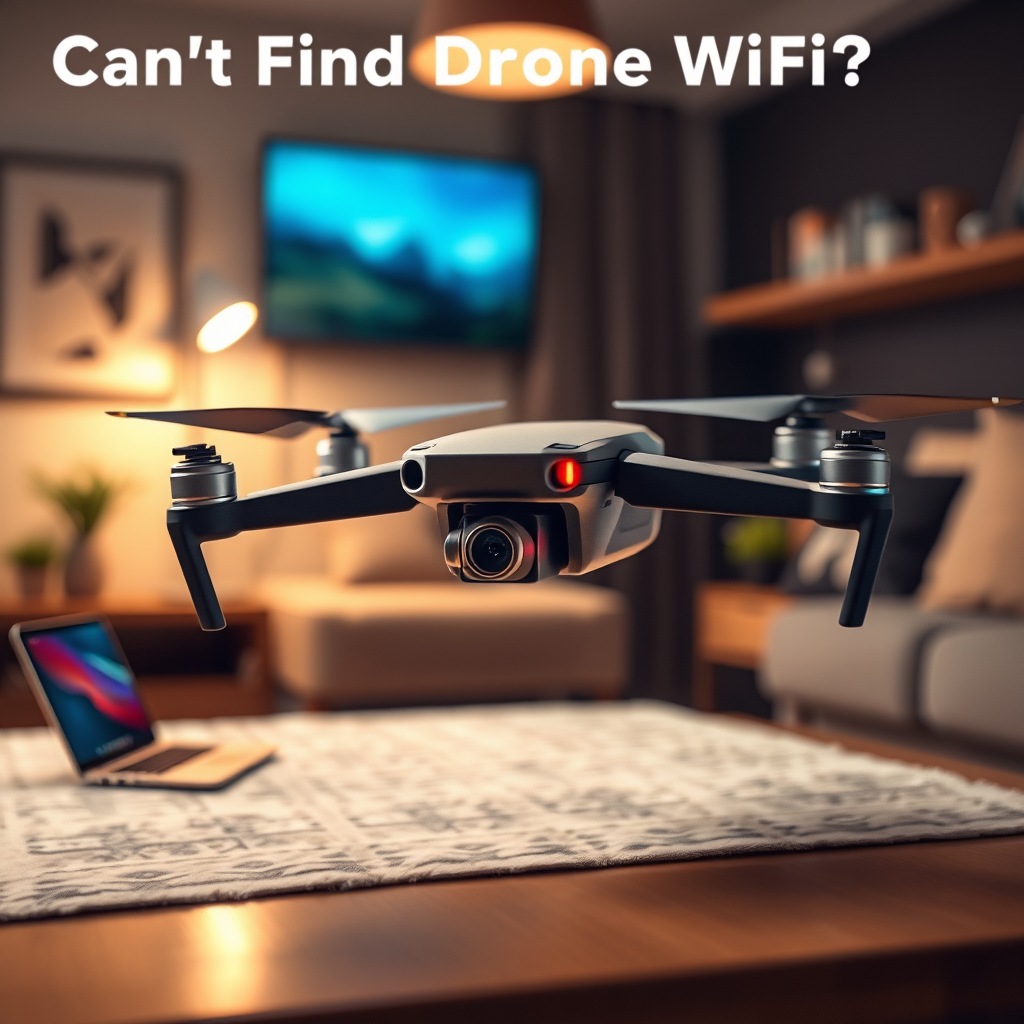
If you can’t find your drone’s WiFi, the first step is to ensure that both the drone and your device are properly connected. Connection issues can stem from various factors, including interference, incorrect settings, or the drone being out of range. This guide provides comprehensive troubleshooting steps that will help you regain your connection and enhance your overall flying experience.
Check Your Device’s WiFi Settings

The first step in troubleshooting your drone’s WiFi connection is to verify that your device’s WiFi settings are configured correctly. Start by ensuring that WiFi is enabled on your smartphone, tablet, or other controlling devices, and confirm that airplane mode is turned off. Often, users overlook this basic setting, which can lead to unnecessary frustration.
Next, navigate to the available networks list on your device. Look for the specific WiFi network associated with your drone, which is typically labeled with the drone’s model or manufacturer name. If you do not see your drone’s WiFi listed, it could indicate that the drone is not broadcasting its signal.
In some cases, users may inadvertently connect to other WiFi networks, which can create confusion. Make sure to select the correct network and enter any required passwords. If the connection still fails, consider forgetting the network on your device and reconnecting to refresh the connection settings.
Confirm Drone Power and Status
After confirming your device’s settings, it’s crucial to check the drone itself. Ensure that your drone is powered on and has enough battery life to function properly. A low battery can lead to a weak or nonexistent WiFi signal, so always start with a fully charged battery before troubleshooting.
Additionally, inspect the drone for any status lights or alerts that might indicate connectivity issues. Most drones feature LED indicators that provide information about the device’s operational status. For example, a steady green light typically signifies a stable connection, while flashing red lights may indicate errors or connection problems. Consult your drone’s user manual for detailed information about the meaning of different status lights.
Reduce Interference
WiFi signals can be susceptible to interference from various sources, which can hinder the connection between your drone and controlling device. To minimize interference, start by moving away from physical obstacles such as buildings, trees, or other structures that can obstruct the signal. These barriers can absorb or reflect the WiFi signal, leading to connectivity challenges.
Moreover, consider relocating to an area with less electronic noise. Heavy WiFi congestion, often found in urban environments or crowded locations, can disrupt your drone’s connection. If possible, test your drone in a more open area, away from other WiFi networks and electronic devices, to assess whether the connection improves.
Additionally, environmental factors such as weather conditions can impact WiFi signals. Rain, snow, and strong winds may not only affect the drone’s performance but can also interfere with connectivity. Always check the weather before flying and avoid operating in adverse conditions.
Restart Devices
Sometimes, the simplest solution is the most effective. Power cycling both your drone and the controlling device can resolve many connectivity issues. To restart your drone, turn it off, wait a few seconds, and then power it back on. Do the same for your smartphone or tablet by fully shutting it down and restarting it.
This process clears any temporary glitches that may be affecting the connection. After restarting both devices, reattempt to connect to the drone’s WiFi. Many users have found that a simple restart resolves their connectivity problems.
Update Firmware and Software
Keeping your drone and its controlling app updated is vital for smooth operation and connectivity. Manufacturers regularly release firmware updates that enhance performance, fix bugs, and improve connectivity features. Check the manufacturer’s website or the app store for updates related to your drone model.
To update your drone’s firmware, connect it to your computer or use the mobile app, depending on the manufacturer’s instructions. Ensure that both the drone and the app on your device are running the latest versions. For instance, DJI frequently releases updates for its drones, addressing various connectivity issues, so it’s essential to stay current.
After updating, reconnect your device to the drone’s WiFi network. Users often report that connectivity issues are resolved after applying the latest updates, as these patches can significantly enhance performance and reliability.
Reset Network Settings
If you’ve exhausted all other troubleshooting steps and still cannot connect to your drone’s WiFi, consider resetting the drone’s network settings. This process can help eliminate any persistent issues that may be rooted in the network configuration.
Refer to the user manual for specific instructions on how to perform a network reset. Typically, this involves navigating to the settings menu of the drone via its app or control interface and selecting the option to reset network settings. Note that doing so may require you to reconfigure some settings, so be prepared to reconnect your device afterward.
Resetting the network settings can often clear up any underlying problems that have not been addressed through other troubleshooting methods.
Seek Help from Support Forums or Customer Service
If you’ve tried all of the above steps and still can’t find your drone’s WiFi, it may be time to seek external assistance. Online support forums can be invaluable resources where users share their experiences and solutions to similar problems. Websites like DJI Forum, Reddit, or specialized drone communities can provide insights and troubleshooting tips that may work for your specific model.
Additionally, reaching out to the manufacturer’s customer service can offer tailored support. They can provide expert advice, troubleshooting steps, or even information about potential hardware issues. Don’t hesitate to contact them, especially if your drone is still under warranty, as they may offer repair or replacement options.
In conclusion, if you can’t find your drone’s WiFi, start with the basic checks and methodically work through the troubleshooting steps outlined above. From ensuring your device settings are correct to seeking help from customer service, these steps can help you regain your connection. Remember that connectivity issues can arise from various factors, and taking a comprehensive approach will enhance your chances of resolving them efficiently. Don’t hesitate to reach out for help if needed—getting your drone up and running is worth the effort!
Frequently Asked Questions
Why can’t I find my drone’s Wi-Fi network?
There could be several reasons why you can’t find your drone’s Wi-Fi network. First, ensure that your drone is powered on and fully charged, as low battery levels can affect connectivity. Additionally, check if your mobile device is within the operational range of the drone and that the Wi-Fi settings are properly configured. If the drone is connected to another device, you may need to disconnect it from that device first.
How do I connect to my drone’s Wi-Fi network?
To connect to your drone’s Wi-Fi network, first, turn on your drone and allow it to establish its Wi-Fi signal. Next, go to the Wi-Fi settings on your mobile device and look for the drone’s network name, which usually includes the drone model. Select the network and enter the password if prompted, which can often be found in the user manual or on the drone’s packaging. Once connected, you should be able to access the drone’s features via the companion app.
What should I do if my drone’s Wi-Fi network is not showing up?
If your drone’s Wi-Fi network is not showing up, first ensure that the drone is turned on and that the Wi-Fi is enabled. Restart both the drone and your mobile device to refresh the connections. If the problem persists, try resetting the drone’s Wi-Fi settings to factory defaults, as this can resolve any configuration issues that may be causing connectivity problems.
Which devices are compatible with my drone’s Wi-Fi connection?
Most modern drones are compatible with a variety of devices, including smartphones and tablets running on iOS and Android systems. To ensure compatibility, check the drone’s user manual for the specific operating system requirements and app availability. Additionally, some drones may offer compatibility with Windows and Mac computers for advanced control and settings adjustments.
What is the best way to troubleshoot drone Wi-Fi issues?
To troubleshoot drone Wi-Fi issues, start by checking the battery levels of both the drone and your mobile device to ensure they are charged. Next, verify that you are within the recommended range for Wi-Fi connectivity, typically within a few hundred feet. If problems continue, reset the Wi-Fi settings on the drone and your device, and reinstall the drone’s companion app. Lastly, consult the manufacturer’s support resources for specific troubleshooting steps related to your drone model.
References
- https://en.wikipedia.org/wiki/Drone
- https://www.faa.gov/uas/getting_started/remote_id
- https://www.nist.gov/news-events/news/2021/06/nist-research-improves-drone-communications-and-navigation
- https://www.reuters.com/technology/drones-are-being-used-deliver-medical-supplies-2021-10-10/
- https://www.bbc.com/news/technology-56611934
- https://www.ncbi.nlm.nih.gov/pmc/articles/PMC7618200/
- https://www.techrepublic.com/article/what-you-need-to-know-about-drone-communications/
- https://www.unm.edu/~jclark/teaching/drone.pdf
