

Yes, DJI drones are compatible with most Android devices, allowing users to enjoy a seamless flying experience. This compatibility empowers Android users to utilize a range of advanced features and functionalities offered by DJI’s cutting-edge technology. In this article, we’ll explore how to connect your DJI drone to an Android device, the specific requirements needed, and tips for optimizing your experience.
Compatibility of DJI Drones with Android
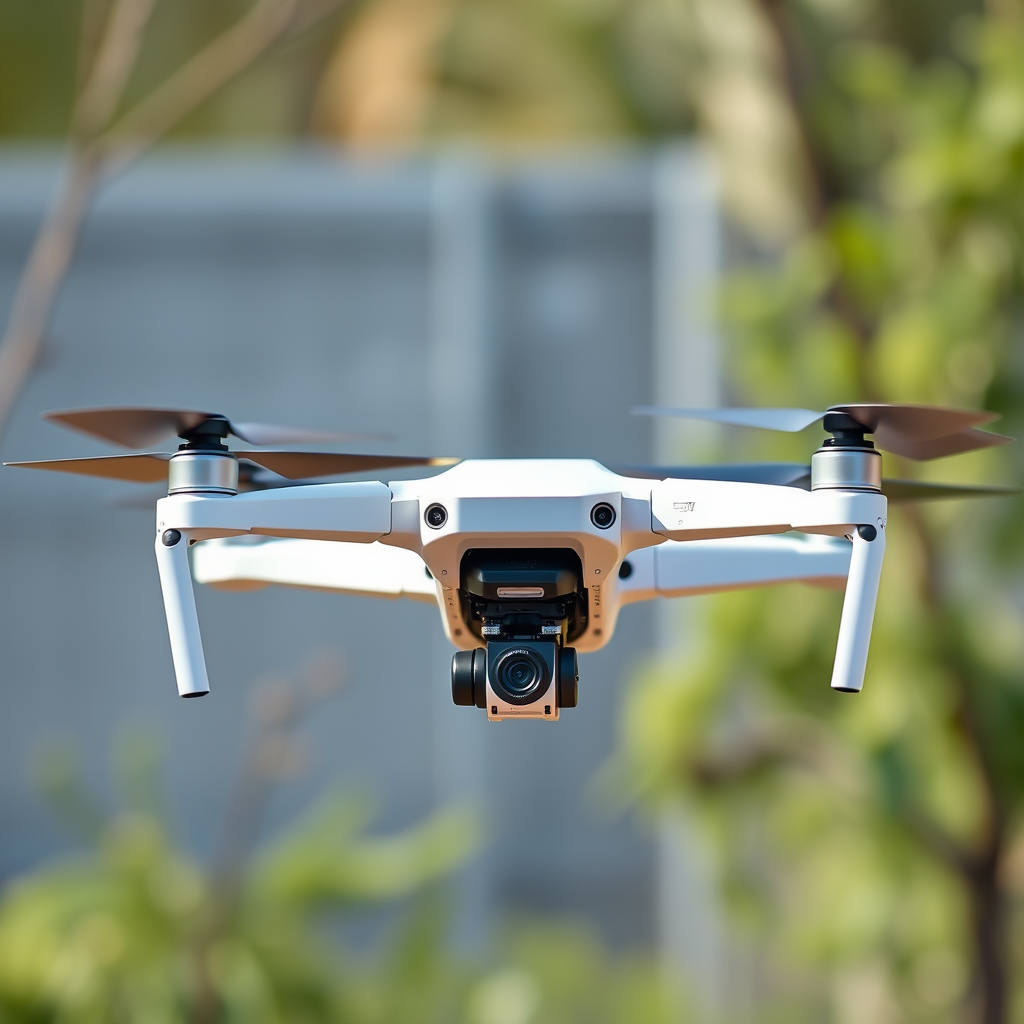
Most recent DJI drones support Android devices running version 5.0 (Lollipop) or higher. This includes popular models such as the Mavic Air 2, Mavic Mini, and the Phantom 4 series, which are designed to work efficiently with modern Android smartphones and tablets. However, it’s essential to note that certain older models may have limited compatibility with specific Android versions or devices. For instance, the DJI Phantom 3 and Inspire series might not function optimally with the latest Android updates. Therefore, checking the specifications of both the drone and your Android device is crucial to ensure a successful connection and optimal performance.
Required Apps for Android Users
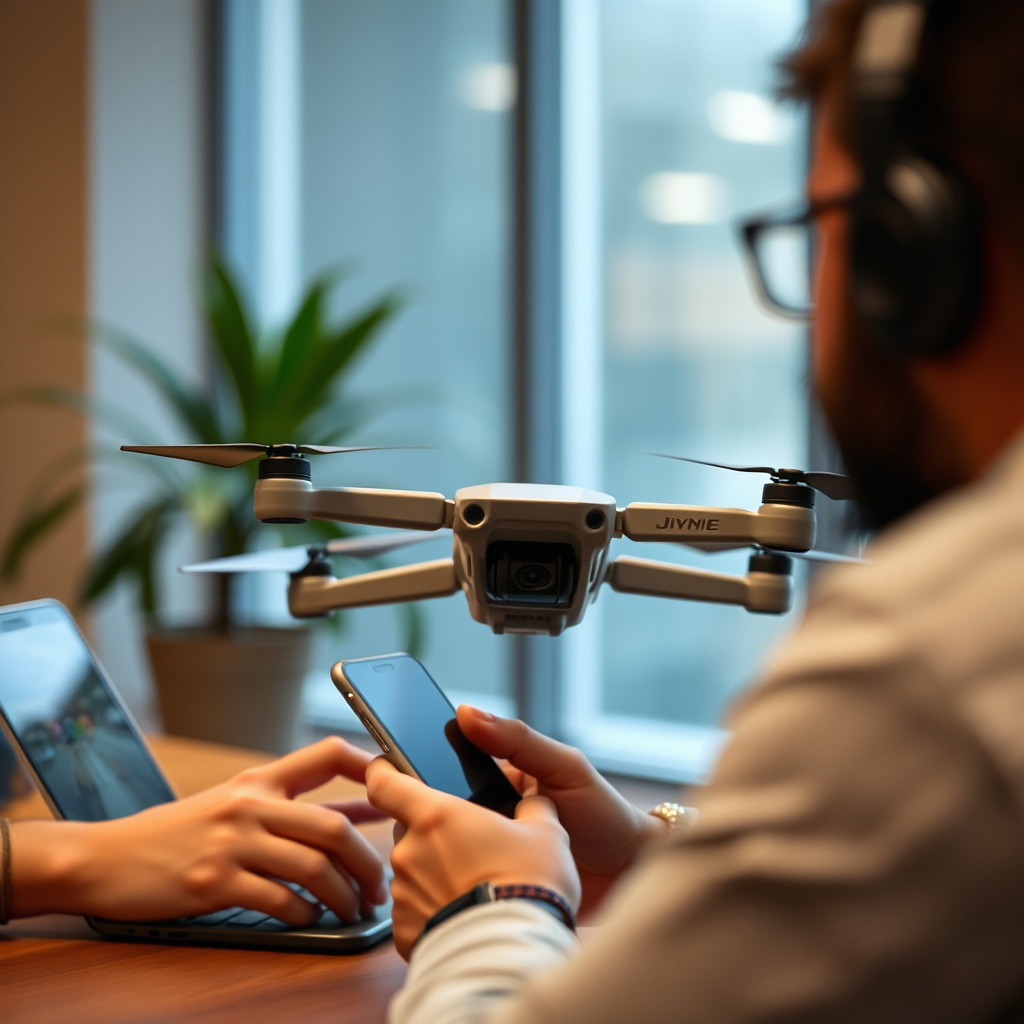
To fully utilize the features of DJI drones, Android users must download specific applications that facilitate communication between the drone and the device. The DJI Fly app is essential for newer models like the Mavic Mini and Air 2, offering a user-friendly interface and a suite of intelligent flight modes. For older models, the DJI GO app or DJI GO 4 app is necessary, depending on the specific drone. These applications not only provide flight controls but also allow users to access real-time telemetry data, camera settings, and editing features. Ensuring that the appropriate app is installed and updated to the latest version is vital for a trouble-free flying experience.
Connecting Your DJI Drone to Android
To connect your DJI drone to an Android device, begin by ensuring that both Bluetooth and GPS are enabled on your Android device. This is crucial as these features facilitate the connection process and enhance the drone’s functionality. Next, launch the respective app (DJI Fly, DJI GO, or DJI GO 4) and follow the in-app instructions for pairing your drone with your device. The app will guide you through the necessary steps, including connecting to the drone’s Wi-Fi network. This process typically involves selecting the drone from the list of available devices and entering any required passwords. For optimal performance, ensure that you are in an area with minimal interference and good GPS signal.
Troubleshooting Common Connection Issues
Occasionally, users may encounter connection issues between their DJI drones and Android devices. If the drone fails to connect, a good first step is to restart both the drone and the Android device. This simple action can clear minor glitches that may be hindering the connection process. Additionally, ensuring that the app is updated to the latest version is crucial, as outdated software can lead to compatibility problems. If issues persist, consider checking the Wi-Fi settings on your device to make sure it is not connected to another network. Lastly, consulting DJI’s customer support or user forums can provide insights from other users who may have faced similar challenges.
Optimizing Your Experience with Android
To enhance your flying experience with DJI drones on Android devices, it is advisable to close unnecessary applications running in the background. This helps to free up system resources, allowing the DJI app to function more smoothly. Additionally, adjusting settings within the app to match your flying preferences can significantly enhance your experience. For example, you can customize the flight modes, camera settings, and even the drone’s return-to-home altitude. Furthermore, optimizing the battery settings on your Android device can extend your flying time, as high-performance features can drain battery life quickly. By managing these aspects, you can achieve a more enjoyable and efficient flying experience.
Benefits of Using Android with DJI Drones
One of the significant advantages of using Android devices with DJI drones is the access to a variety of third-party apps that can expand your drone’s functionality. Applications such as Litchi and DroneDeploy offer additional features like waypoint missions and automated flight paths, providing greater flexibility for advanced users. Furthermore, Android devices come in a broader variety of options and price points compared to iOS devices. This diversity allows users to choose a device that fits their budget and performance needs. Additionally, the open nature of the Android operating system encourages innovation and integration with new technologies, potentially enhancing the user experience further.
The use of DJI drones with Android devices is not only possible but also convenient and beneficial for many users. By following the steps outlined, you can ensure a successful and enjoyable flying experience. Be sure to check compatibility and app requirements to get started right away. With the right knowledge and tools, Android users can fully harness the capabilities of their DJI drones, making every flight an exciting adventure.
Frequently Asked Questions
Do DJI drones work with Android devices?
Yes, DJI drones are compatible with Android devices, allowing users to control their drones and access various features through the DJI Fly app or other specific apps for different drone models. It’s essential to check if your Android device meets the minimum system requirements for the app, such as having an appropriate version of the operating system, sufficient RAM, and processing power for optimal performance.
How do I connect my DJI drone to my Android phone?
To connect your DJI drone to your Android phone, start by downloading and installing the DJI Fly app from the Google Play Store. Next, turn on your drone and remote controller, then use a USB cable to connect your Android device to the remote controller. Follow the on-screen instructions in the app to establish a connection, and make sure to enable location services and permissions for the app to function correctly.
Why is my DJI drone not connecting to my Android device?
Several factors could prevent your DJI drone from connecting to your Android device, including outdated firmware, incompatible app versions, or incorrect USB settings. To troubleshoot, ensure that both your drone and the app are updated to the latest versions, check the USB connection type (try switching between USB modes), and restart both devices. If issues persist, consult the DJI support website for further diagnostic steps.
What are the best Android devices for using DJI drones?
The best Android devices for using DJI drones typically include those with powerful processors, ample RAM, and high-resolution displays, such as the Samsung Galaxy S series, Google Pixel series, or OnePlus models. These devices not only provide smooth performance while running the DJI Fly app but also enhance your flying experience with clear visuals and quick response times. Always check current compatibility on the DJI website to ensure optimal performance.
Which DJI drones are compatible with Android apps?
Most modern DJI drones, including the Mavic series (Mavic Air, Mavic Mini, Mavic 2), the Phantom series, and the DJI Spark, are compatible with Android apps like DJI Fly and DJI GO 4. However, it’s important to verify compatibility on the DJI official website for each specific model, as some older drones may require different apps or may not support the latest Android updates. Always refer to the user manual for details on app compatibility and setup.
References
- DJI
- https://www.dji.com/mobile/downloads/dji-go-app
- DJI Support for Products Repairs Services and Technical Help – DJI Global or Other Regions
- https://www.theverge.com/2019/1/18/18188060/dji-drones-android-app-ios-update
- https://www.techradar.com/news/what-drones-can-you-use-with-android
- https://www.cnet.com/tech/mobile/how-to-connect-your-dji-drone-to-an-android-device/
- https://www.wired.com/story/dji-drone-apps-android-ios/
