
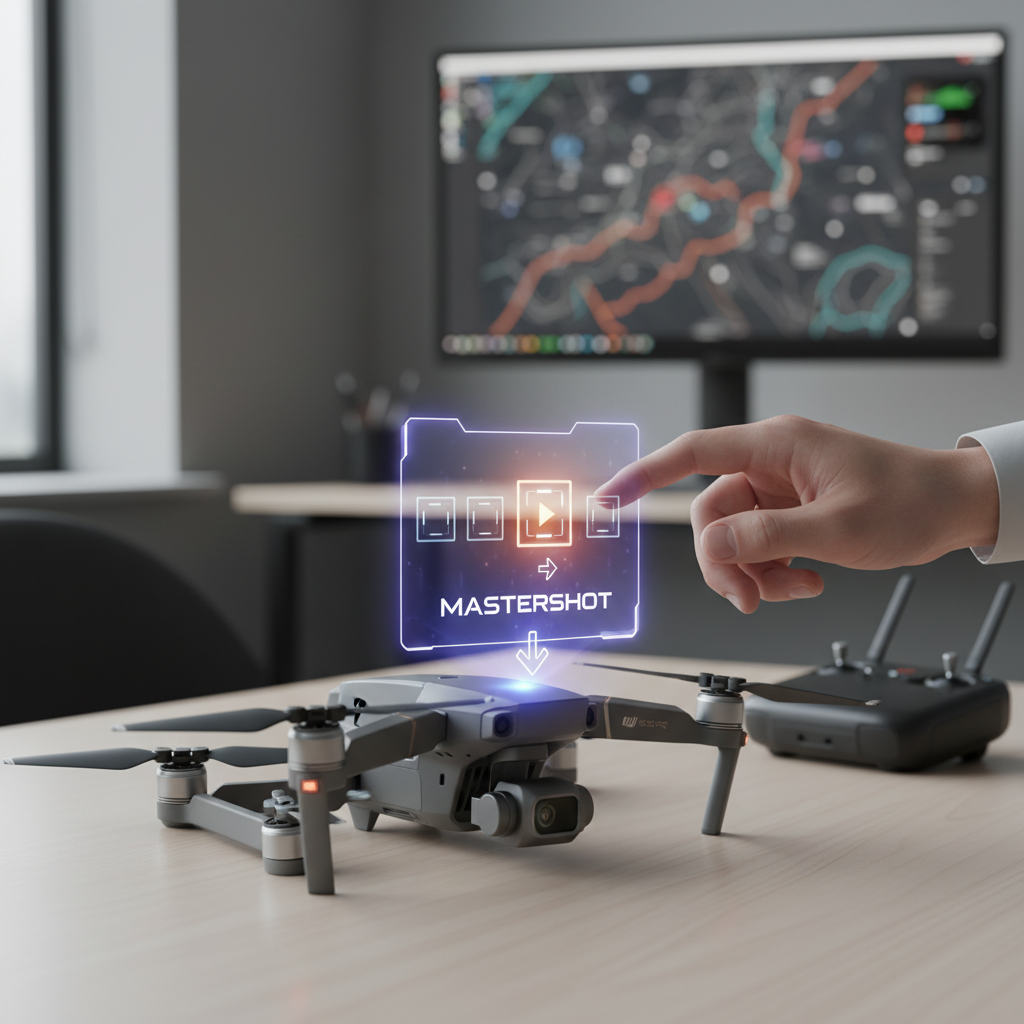
To change the mastershot on your DJI drone, start by accessing the DJI Fly app and navigating to the editing features. This quick adjustment allows you to customize your aerial shots for enhanced creativity and storytelling. Mastershots are pre-programmed flight paths that help you capture professional-looking footage with minimal effort, making them an invaluable tool for both amateur and professional drone pilots. By mastering the art of changing and utilizing mastershots, you can elevate your videography skills and create stunning aerial content.
Understanding Mastershots
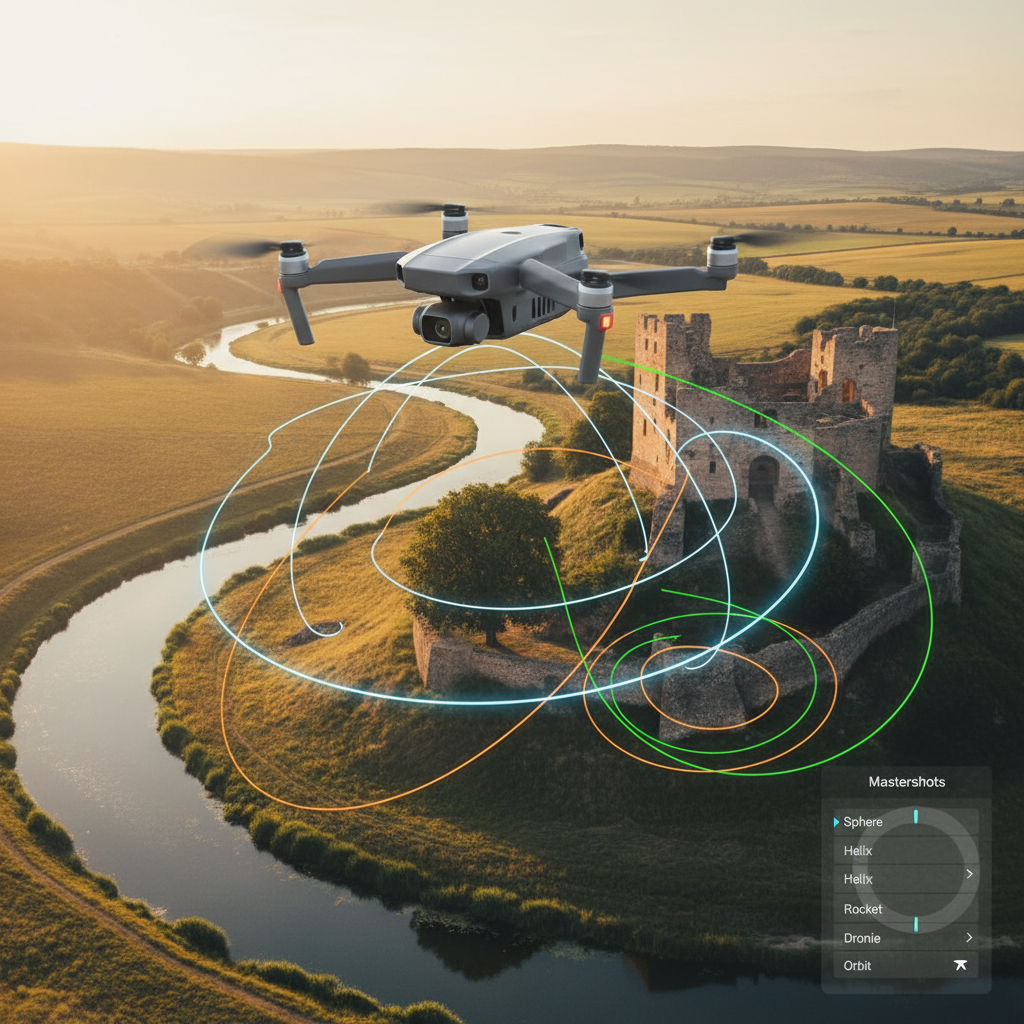
Mastershots are essentially predetermined flight patterns that your DJI drone can execute to capture cinematic footage automatically. These shots are designed to provide a range of dynamic movements—such as circling, pulling away, or tracking subjects—allowing filmmakers to focus on composition and storytelling rather than piloting. The purpose of mastershots in drone videography is to streamline the filming process while ensuring high-quality results that can impress viewers. Whether you’re capturing a breathtaking landscape or documenting an event, using mastershots can significantly enhance the production value of your footage. They enable you to tell a story through dynamic movements, creating an engaging experience for your audience.
Accessing the DJI Fly App
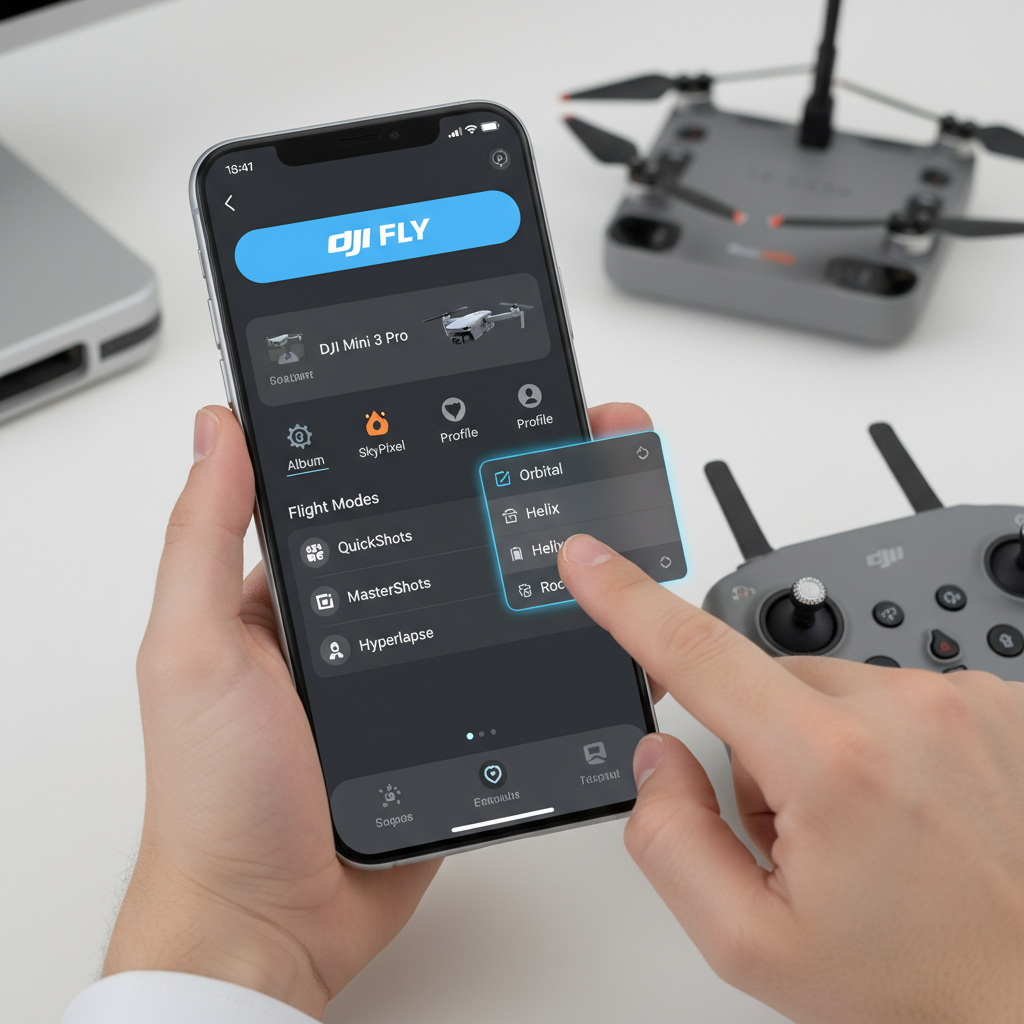
If you haven’t already downloaded the DJI Fly app, it’s a simple process. The app is available for both iOS and Android devices. To download, simply visit the App Store or Google Play Store, search for “DJI Fly,” and click “Install.” Once installed, open the app and follow the on-screen prompts to create or log into your DJI account.
Next, to connect your drone to the app, ensure that your drone is powered on and within Bluetooth range. The app will automatically detect your drone. If prompted, follow the instructions to pair your device. Once connected, you’ll gain access to a plethora of features, including camera settings, flight modes, and, crucially, the mastershot options.
Selecting a Mastershot
Within the DJI Fly app, you’ll find various mastershot options tailored for different scenarios. These typically include options like “Rocket,” “Dronie,” “Circle,” and “Helix,” each designed to achieve a specific look. For instance, the Rocket mastershot ascends vertically while keeping the camera focused on the subject, perfect for capturing dramatic height transitions.
When selecting a mastershot, consider your filming needs and the environment. For instance, if you’re capturing a sprawling landscape, a Circle mastershot might be the ideal choice, as it provides a comprehensive view while showcasing the surroundings. Conversely, if you’re focusing on a specific subject, the Dronie could better suit your needs by pulling away from the subject to reveal more of the context. Always visualize the end result and think about how the movement will contribute to your story.
Customizing Your Mastershot
Once you’ve selected a mastershot, you can customize various settings to tailor the shot to your liking. In the DJI Fly app, you can adjust parameters such as speed, camera angles, and duration. For example, if you prefer a slower, more deliberate shot, you can decrease the speed setting. Alternatively, increasing the speed will result in a more dynamic feel.
Additionally, it’s crucial to preview the shot before finalizing your settings. The app typically offers a preview function that allows you to see a simulated version of the mastershot. This step not only ensures that your adjustments align with your vision but also helps you catch any potential issues before you take to the skies.
Executing the Mastershot
To initiate the mastershot from the app, navigate to the “Mastershots” section and select your desired shot. The app will guide you through any necessary steps, such as positioning your drone and ensuring the area is clear of obstacles. Once ready, simply press “Start” to execute the mastershot.
While flying, safety should always be a priority. Ensure that you are aware of your surroundings, maintain a safe distance from people and obstacles, and abide by local regulations regarding drone flights. Utilize the app’s features to monitor real-time data, such as battery life and GPS signal strength, to enhance your safety during the flight.
Troubleshooting Common Issues
Despite the advanced technology of DJI drones, users may encounter some common issues when changing or executing mastershots. These can include connectivity problems between the drone and the app, failure to sync settings, or unexpected drone behavior during the shot.
A quick fix for connectivity issues often involves restarting both the drone and the app. Ensure that your smartphone or tablet’s Bluetooth is enabled and that the drone is within range. If the mastershot fails to initiate, double-check the selected settings and ensure that the drone is properly calibrated. Additionally, familiarize yourself with the user manual and DJI’s online support resources, as they provide valuable insights into resolving specific issues.
Enhancing Your Mastershot Experience
Beyond the basics of changing mastershots, the DJI Fly app offers a variety of additional tools and features that can complement your filming experience. For example, utilizing the Intelligent Flight Modes can further enhance your creativity, allowing for complex shots that can elevate your videography.
Moreover, consider exploring different camera settings such as exposure, white balance, and frame rates to achieve the desired look for your footage. Experimenting with these options can yield unique results and help you refine your style as a drone pilot. Remember, the more you practice with different settings and mastershot combinations, the more skilled you will become in capturing breathtaking aerial perspectives.
In conclusion, changing the mastershot on your DJI drone is a straightforward process that can greatly enhance your aerial videography. By understanding mastershots, accessing the DJI Fly app, selecting and customizing shots, executing them safely, and troubleshooting issues, you can create stunning aerial footage that tells a compelling story. Remember to leverage the app’s additional features and take the time to experiment with various settings for unique results. Happy flying!
Frequently Asked Questions
How do I change the master shot settings on my DJI drone?
To change the master shot settings on your DJI drone, first, ensure your drone is powered on and connected to the DJI Fly app. Navigate to the camera settings and select the “Mastershot” feature. From there, you can customize various parameters such as the duration of the shot, the subject tracking options, and the specific flight path. Make sure to save your changes before exiting the settings menu to ensure your new configurations are applied.
What is a master shot and how does it work on DJI drones?
A master shot is a cinematic feature available on DJI drones that allows users to capture professional-quality video automatically. The drone autonomously executes a series of complex maneuvers while filming a selected subject, resulting in a polished video clip. This feature is particularly useful for beginners, as it eliminates the need for intricate piloting skills while still delivering impressive footage.
Why isn’t my DJI drone performing the master shot correctly?
If your DJI drone isn’t performing the master shot correctly, it could be due to several factors. Ensure that the drone’s firmware is up to date, as outdated software can cause performance issues. Additionally, check if the subject is clearly visible and not obstructed, as the drone relies on visual recognition to execute the shot. Finally, confirm that you have sufficient GPS signal strength and that the area is free of obstacles to ensure a smooth flight path.
Which DJI drones support the master shot feature?
The master shot feature is supported on several DJI drone models, including the DJI Mini 2, Air 2S, and Mavic Air 2. These advanced drones come equipped with intelligent flight modes that enhance the user experience and enable the execution of complex shots with minimal effort. Always check the specifications and capabilities of your particular drone model in the user manual or on the DJI website to confirm if master shots are supported.
What are the best tips for using the master shot feature on my DJI drone?
To get the best results from the master shot feature on your DJI drone, start by selecting a well-defined subject that contrasts with its background for optimal tracking. Ensure the lighting conditions are favorable—early morning or late afternoon often provides the best natural light. Additionally, experiment with different flight paths and shot durations to see which one captures your subject most effectively. Lastly, reviewing the footage post-flight can help you refine your technique for future master shots.
References
- https://www.dji.com/uk/support/mavic-2
- https://www.tomsguide.com/how-to/how-to-use-the-mastershot-feature-on-your-dji-drone
- https://www.reddit.com/r/dji/comments/pcvl9n/how_to_use_mastershots_on_dji_drones/
- https://www.theverge.com/2021/5/24/22451637/dji-air-2s-review-drone-camera-features
- https://www.digitaltrends.com/space/dji-drone-mastershots-explained/
- https://www.cnet.com/how-to/dji-drone-mastershots/
- https://www.techradar.com/how-to/how-to-use-mastershots-on-dji-drones
