
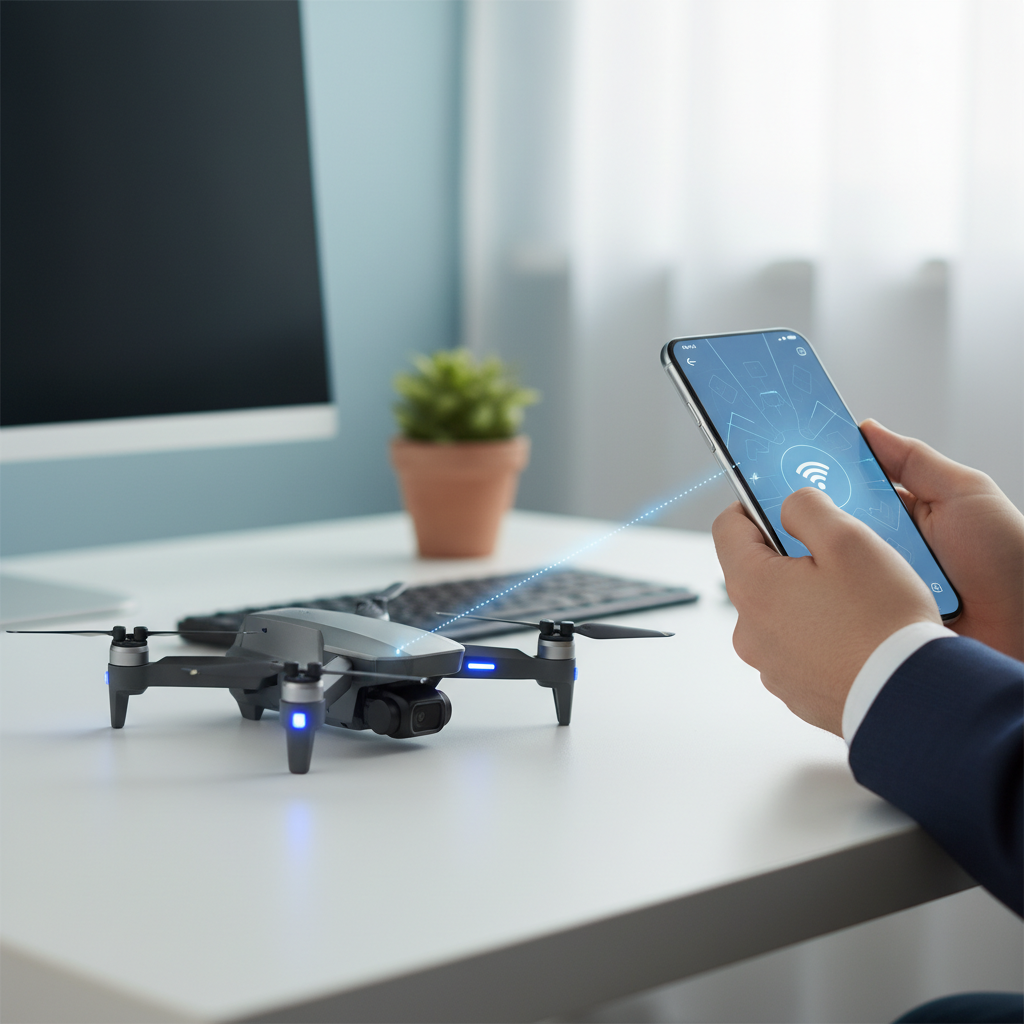
To connect your E99 drone to your phone, start by downloading the designated app for the drone, ensuring your phone’s Bluetooth is enabled. This connection process is essential as it allows you to control your drone, view live footage, and access various features directly from your phone, significantly enhancing your flying experience. In this comprehensive guide, we will delve into the features of the E99 drone, outline the preparation needed for your phone, and provide a step-by-step process to connect your devices. Additionally, we will discuss troubleshooting tips, app features, and safety guidelines to ensure that you have a safe and enjoyable time flying your drone.
Understanding the E99 Drone Features
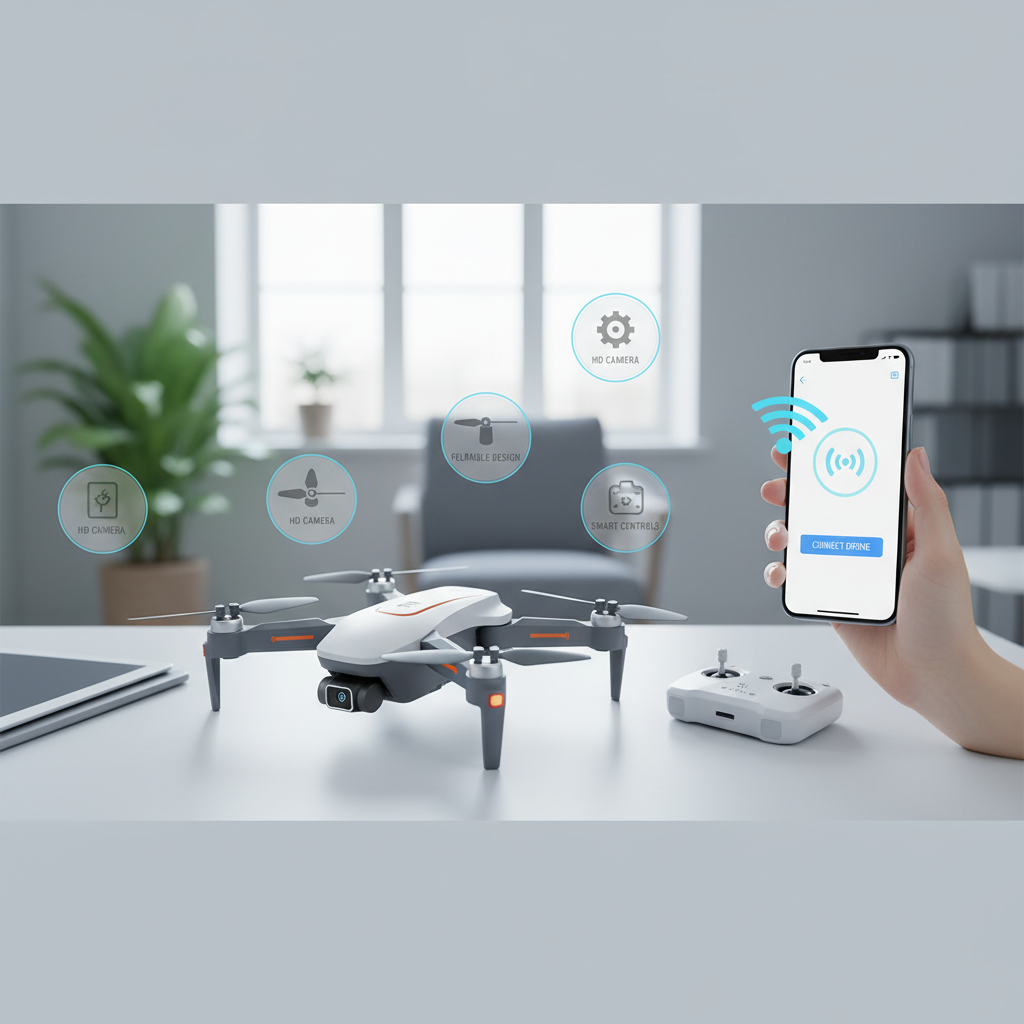
The E99 drone is designed with several advanced functionalities that cater to both novice and experienced drone enthusiasts. These features include an HD camera for capturing high-quality images and videos, adjustable flight modes for varied flying experiences, and a robust battery life that extends your flying time. The drone also incorporates real-time transmission capabilities, allowing you to view live footage directly on your device, enhancing your ability to navigate and capture stunning aerial shots.
Mobile connectivity plays a crucial role in maximizing these features. When connected to your phone, you can access intuitive controls that simplify flying and enable you to adjust settings on-the-fly. The app enhances your experience by providing a user-friendly interface that integrates all the drone’s functionalities, making it easier to enjoy flying without needing extensive technical knowledge.
Preparing Your Phone for Connection
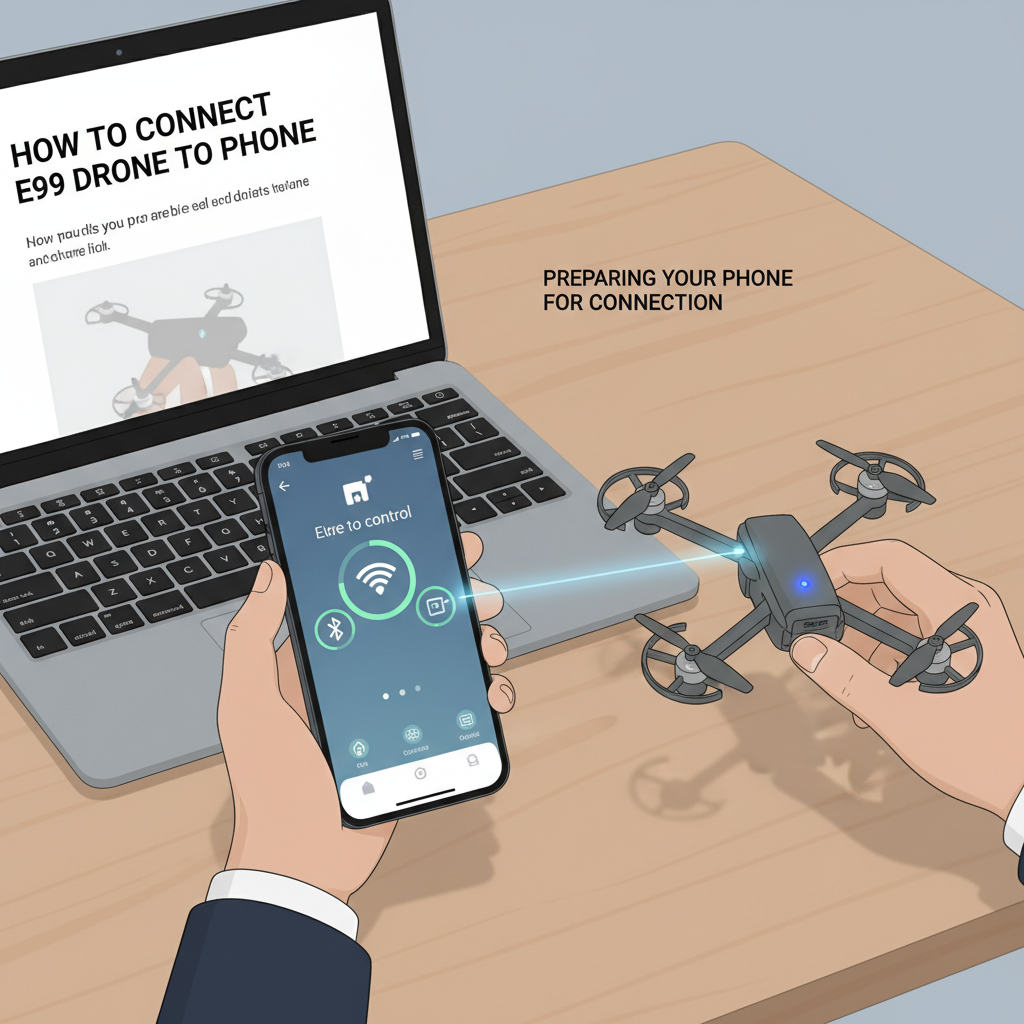
Before you can connect your E99 drone to your phone, there are essential steps to take to ensure both devices are ready for pairing. Start by downloading the official E99 drone app, which is available on both the App Store for iOS users and Google Play for Android users. This app is tailored to interface seamlessly with the drone, offering a range of functionalities that elevate your flying experience.
Next, make sure that your phone’s Bluetooth and Wi-Fi settings are enabled. The Bluetooth connection is necessary for pairing with the drone, while the Wi-Fi may be used for a stronger connection during live video streaming. To check these settings, navigate to your phone’s settings menu, and ensure both Bluetooth and Wi-Fi options are toggled on. This preparation is crucial for establishing a reliable connection with your drone.
Steps to Connect the E99 Drone
Once you have prepared your phone, follow these steps to connect your E99 drone:
1. Power on the E99 Drone: Locate the power button on the drone and turn it on. Wait for a few moments until you hear a series of beeps, indicating the drone is ready.
2. Enter Pairing Mode: The E99 drone typically enters pairing mode automatically upon startup. If not, consult the user manual for specific instructions on how to activate pairing mode.
3. Open the App: Launch the E99 drone app on your phone. The app should automatically scan for nearby devices.
4. Follow On-screen Instructions: Once the drone appears on your app’s screen, tap on it to initiate the connection. Follow any additional prompts that may appear, and wait for the confirmation that the connection has been established.
By completing these steps, you should successfully connect your E99 drone to your phone, enabling you to take full advantage of its features.
Troubleshooting Connection Issues
Despite following the connection steps, you may encounter some common problems. Here are a few potential issues and their solutions:
– Bluetooth Not Finding the Drone: Ensure that the drone is powered on and in pairing mode. If the app still cannot find it, try rebooting both the drone and your phone.
– Connection Dropping: If your connection drops frequently, check the distance between your phone and the drone. A distance of more than 30 meters can lead to instability.
– Wi-Fi Interference: In areas with multiple wireless signals, there may be interference. Try moving to a location with fewer competing signals to improve connection stability.
By being aware of these common problems and their solutions, you can maintain a stable connection and enjoy flying your drone without interruption.
Utilizing the App Features
The E99 drone app is packed with features that greatly enhance your flying experience. One of the most notable is the live feed function, which allows you to see what the drone sees in real-time. This feature is particularly useful for capturing stunning aerial footage or navigating complex environments.
Additionally, the app provides control settings that allow you to adjust the drone’s flight modes, camera settings, and even set up predefined flight paths. You can also monitor battery life and receive alerts for low battery warnings, ensuring that you don’t run out of power mid-flight.
To optimize performance, utilize the app to customize settings based on your flying environment. For example, adjusting the sensitivity of the controls can make flying in windy conditions much easier. By familiarizing yourself with these features, you can make the most out of your E99 drone.
Safety Tips for Flying Your E99 Drone
Safety should always be a priority when flying drones. Here are some essential guidelines to follow:
1. Pre-flight Check: Before taking off, conduct a thorough check of your drone, including the battery level, propeller condition, and camera functionality.
2. Avoid Restricted Areas: Familiarize yourself with local regulations regarding drone flights. Many areas have restrictions, such as near airports or crowded places, which could lead to legal issues.
3. Maintain Line of Sight: Always keep your drone within your line of sight. This practice not only complies with regulations but also helps you maintain control over your drone.
4. Weather Conditions: Avoid flying in adverse weather conditions, such as high winds or rain, which can affect the drone’s performance and safety.
By adhering to these safety tips, you ensure a responsible flying experience while also protecting your investment in the E99 drone.
In summary, connecting your E99 drone to your phone enhances your flying experience by providing easy access to its features and live footage. By following the outlined steps carefully, preparing your devices, and utilizing the app’s functionalities, you can enjoy a seamless connection. Remember to prioritize safety and adhere to local regulations to ensure that your drone flying is both enjoyable and responsible. Happy flying!
Frequently Asked Questions
How do I connect my E99 drone to my phone?
To connect your E99 drone to your phone, first ensure that both devices are fully charged. Next, download the specific app designed for the E99 drone from the App Store or Google Play. After installation, power on the drone and navigate to your phone’s Wi-Fi settings to find the drone’s Wi-Fi network, typically labeled as “E99_XXXX.” Connect to this network, and then open the app to establish a connection and access the drone’s controls and camera features.
Why won’t my E99 drone connect to my phone?
There can be several reasons why your E99 drone isn’t connecting to your phone. First, ensure that the drone is powered on and that its Wi-Fi network is active. Check if your phone’s Wi-Fi is turned on and that you’re selecting the correct network. Additionally, make sure that you have the latest version of the app installed, as outdated software can cause compatibility issues. If problems persist, try restarting both the drone and your phone.
What should I do if the E99 drone app crashes on my phone?
If the E99 drone app crashes on your phone, begin by closing the app completely and then restarting it. Ensure your phone’s operating system is updated to the latest version, as compatibility issues may arise with older software. If the problem continues, consider uninstalling and reinstalling the app to fix potential corruption issues. Also, check for any updates for the app, as developers often release patches to enhance performance and stability.
Which smartphones are compatible with the E99 drone?
The E99 drone is generally compatible with most smartphones that run on iOS or Android operating systems, specifically those with Bluetooth and Wi-Fi capabilities. For optimal performance, it is recommended to use smartphones with at least Android 5.0 or iOS 10.0 and above. Always check the manufacturer’s specifications and user reviews to ensure compatibility with your specific phone model.
How can I improve the connection quality between my E99 drone and phone?
To enhance the connection quality between your E99 drone and your phone, ensure you’re within a reasonable range of the drone—ideally within 100 meters. Minimize interference from other Wi-Fi networks or electronic devices by choosing a less crowded area for flying. Additionally, keep both the drone and your phone updated with the latest firmware and software, as improvements in connectivity can be included in updates from the manufacturer.
