
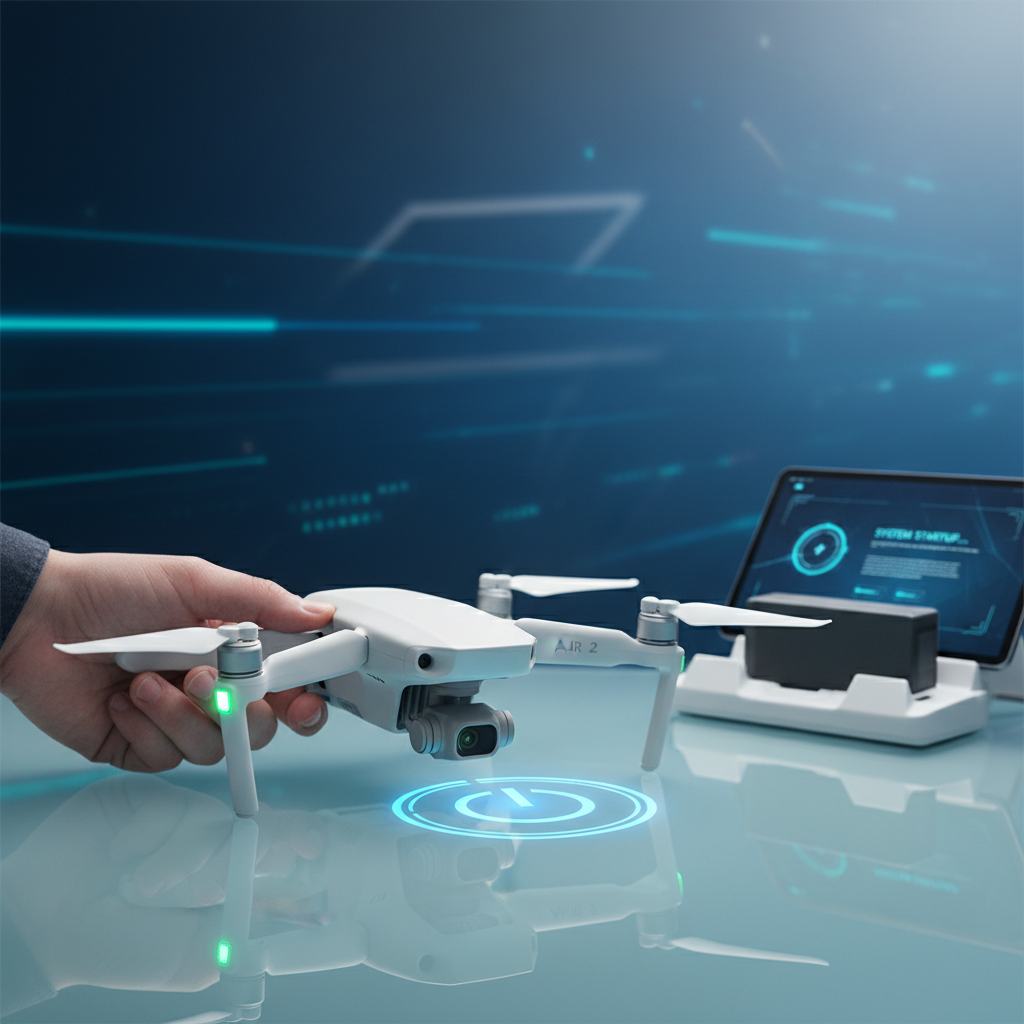
To turn on your DJI drone, simply press the power button on the battery or remote control until you see the indicator lights illuminate. This quick process is essential for getting started with your flight. Ensuring that your drone is powered on correctly is the first step toward enjoying a seamless flying experience. In this guide, we will delve into the detailed steps you need to follow to turn on your DJI drone, prepare it for flight, and troubleshoot common issues that may arise.
Understanding the Power Button
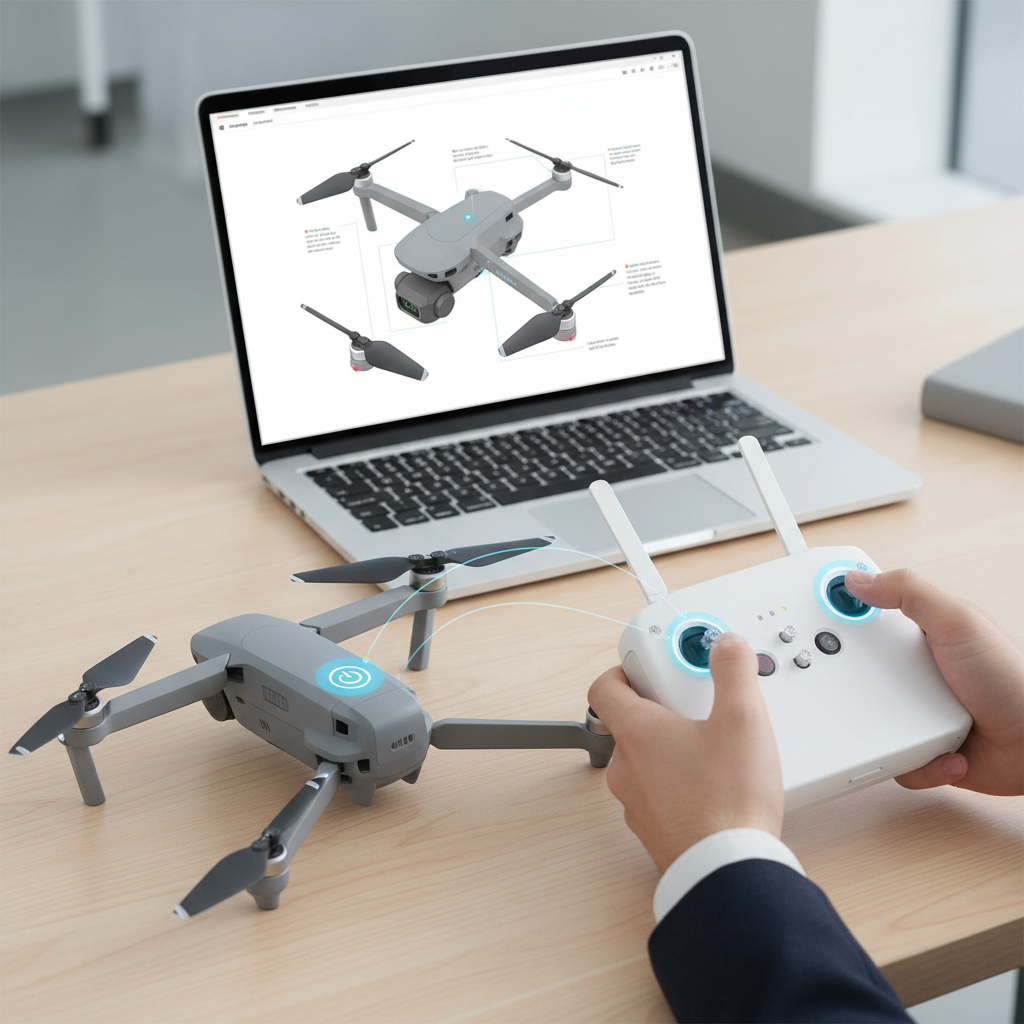
The power button is a critical component in the operation of your DJI drone. It is typically located either on the drone’s battery or on the remote control, depending on the specific model you own. To activate your drone, locate the power button, which is often marked with a universal power symbol. Once found, press and hold the button for approximately two seconds. If done correctly, you will notice the indicator lights illuminating, signaling that your drone is now powered on and ready for the next steps in your pre-flight checklist.
It’s important to note that the power button may have different functions based on the model. For instance, some advanced models may require a double-press to power on or include additional safety features that prevent accidental activation. Familiarizing yourself with the specific requirements of your drone model is essential for a smooth operation.
Preparing Your Drone for Power On
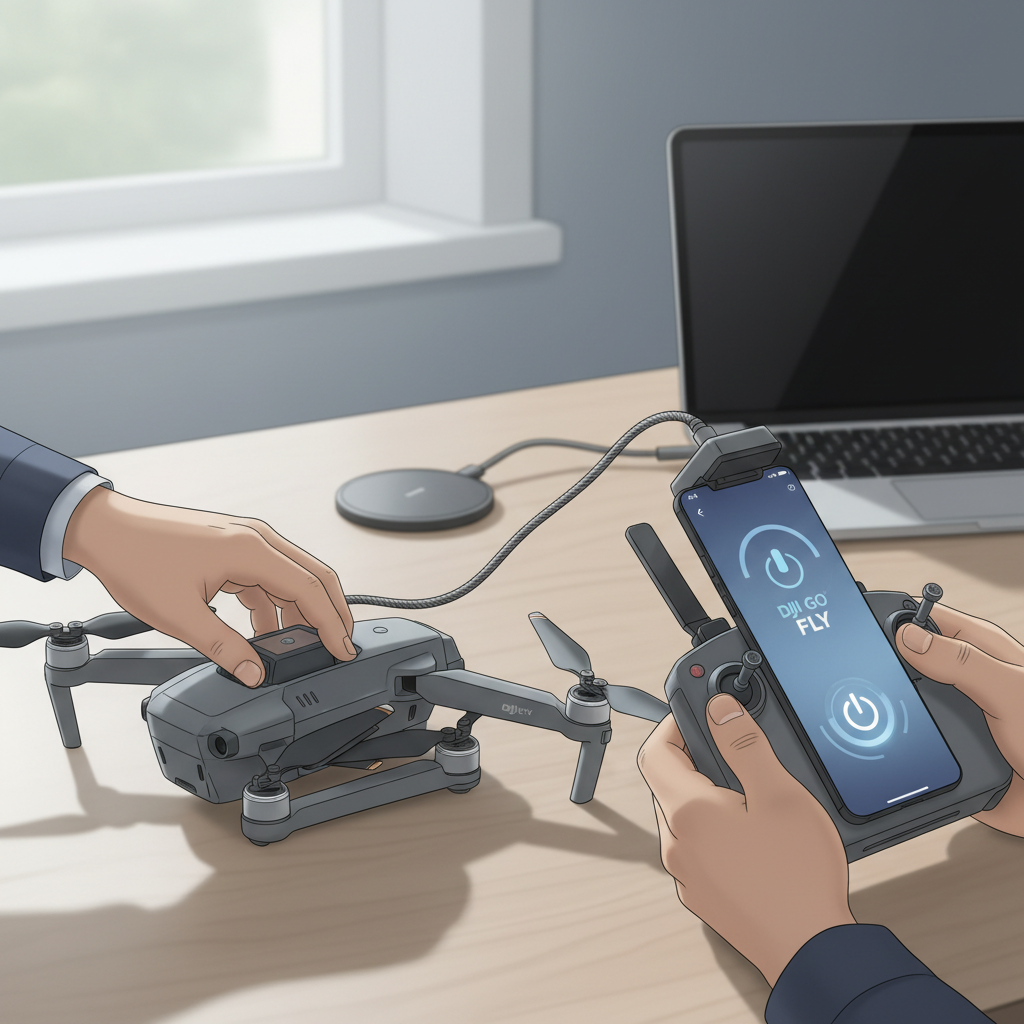
Before powering on your drone, it’s vital to ensure that the battery is adequately charged. Check the battery levels using the built-in indicators; most DJI drone batteries will have LED lights that display the current charge status. A fully charged battery not only enhances flying time but also reduces the risk of mid-flight failures.
Additionally, securing all components is crucial. Inspect the propellers to ensure they are attached correctly and free from any obstructions. Loose or damaged propellers can significantly impact flight stability and safety. Moreover, if your drone has any other attachments, such as a gimbal or additional equipment, ensure they are properly fixed to avoid complications during flight.
Turning On the Remote Control
The remote control is your primary interface for operating the drone, and it needs to be powered on separately. Similar to the drone, locate the power button on the remote control and press it for about two seconds. Again, watch for the connection indicators; typically, these will illuminate or blink to signal that the remote is powered on and attempting to connect with the drone.
It’s essential to ensure that the remote and drone are paired correctly to establish a successful connection. If you experience issues, refer to your user manual for detailed instructions on pairing processes, as some models may require a specific sequence or additional configuration through the DJI app.
Activating the Camera
For many users, the camera is one of the most exciting features of a DJI drone. Depending on your model, there may be a separate switch to power on the camera. For instance, some drones, like the DJI Mavic series, allow you to turn on the camera independently to check settings before takeoff.
Before launching into the air, it’s advisable to verify your camera settings through the DJI app. This includes checking resolution, frame rate, and other preferences that align with your filming needs. Familiarizing yourself with the camera controls and features will enhance your overall shooting experience and help you capture high-quality footage.
Safety Checks Before Flight
Conducting thorough safety checks before flight is paramount in drone operation. The DJI app provides a user-friendly interface that guides you through the calibration process, which is crucial for accurate flight performance. Calibrating your drone helps to ensure that it understands its orientation and is capable of maintaining stable flight paths.
In addition to calibration, assessing your flying environment is equally important. Look for potential obstacles such as trees, buildings, or power lines that may interfere with your flight. Additionally, check the weather conditions; strong winds or precipitation can adversely affect your drone’s performance. By conducting these safety checks, you can significantly minimize the risks associated with flying your drone.
Troubleshooting Common Power Issues
Even with proper procedures in place, you may encounter power issues when attempting to turn on your DJI drone. One common issue is a lack of response when pressing the power button. This can often be attributed to an incorrectly inserted battery. Ensure that the battery is seated properly, making sure the connectors are aligned.
If you see that the indicator lights are not illuminating, it may indicate that the battery requires charging or that it has sustained damage. In such cases, connect the battery to a charger and allow it to charge fully. If the problem persists, inspect the battery for any visible signs of wear or damage, as this may require replacement.
Final Preparations for Takeoff
Once your drone and remote control are powered on, and all safety checks have been successfully completed, it’s time to finalize your flight preparations. Open the DJI app on your mobile device, which serves as an essential tool for managing your drone’s settings and controls. The app provides access to vital features such as GPS status, battery life, and camera settings, ensuring that you are fully prepared for takeoff.
Before launching, confirm that all systems are functioning correctly. Check that the drone’s GPS has locked onto the satellites and that the compass calibration is accurate. Once you’ve verified that everything is in order, you can confidently initiate your flight.
In conclusion, turning on your DJI drone is a straightforward process that involves both the drone and the remote control. By following the steps outlined above, you’ll be well on your way to capturing stunning aerial footage. Remember to conduct thorough safety checks and troubleshoot common issues as needed to ensure a smooth flying experience. With these guidelines in mind, you are now ready to take to the skies. Happy flying!
Frequently Asked Questions
How do I turn on my DJI drone for the first time?
To turn on your DJI drone for the first time, begin by ensuring that both the drone and the remote controller are fully charged. Press and hold the power button on the drone until you see the LED lights illuminate, indicating that it’s powered on. For the remote controller, press and hold the power button until it turns on as well. Make sure to connect the drone to the controller through the DJI Go app to complete the setup.
Why won’t my DJI drone turn on?
If your DJI drone won’t turn on, first check the battery level to ensure it is charged. If the battery is charged but the drone still does not turn on, inspect the battery connections for any dirt or debris that might be preventing contact. Additionally, verify that the power button is being pressed correctly—some models require a longer press or a specific sequence. If the issue persists, consult the user manual or DJI support for troubleshooting steps.
What is the proper way to power off my DJI drone?
To power off your DJI drone, simply press and hold the power button until the LED lights turn off. This usually takes about two seconds. It’s important to wait until the drone fully powers down, as abruptly disconnecting the battery can lead to potential issues. Always ensure that the propellers have come to a complete stop before turning off the drone to avoid any accidents.
Which DJI drones have a unique power-on sequence?
Many DJI drones, like the Mavic series and the Phantom series, have a standard power-on sequence; however, some models, like the DJI Mini 2, introduce a slightly different method. In addition to the regular power button, these models might have a specific sequence for turning on the drone and remote controller that includes pressing the power button twice quickly or holding it for a longer duration. Always refer to your specific model’s user manual for precise instructions to avoid any operational errors.
How can I troubleshoot my DJI drone if it doesn’t respond after turning it on?
If your DJI drone does not respond after being powered on, first ensure that the remote controller is properly connected and within range. Check for any firmware updates that may need to be installed via the DJI app, as outdated software can lead to connectivity issues. Additionally, perform a calibration of both the drone and the remote controller, as improper calibration can sometimes result in unresponsiveness. If these steps do not resolve the issue, consider reaching out to DJI customer support for further assistance.
References
- https://www.dji.com/ca/support/faq/how-to-turn-on-dji-drone
- https://www.dji.com/ca/flysafe/education
- https://www.usa.gov/electronic-devices
- https://www.theguardian.com/technology/2021/sep/01/drone-technology-explained
- https://en.wikipedia.org/wiki/Drone_flight
- https://www.nasa.gov/mission_pages/aircraft/technology/drones.html
- https://www.faa.gov/uas/getting_started/
- https://www.techrepublic.com/article/how-to-use-drones-in-your-business/
