
Yes, you can unbind a DJI drone from its controller or app. This process is straightforward and can help you reset your drone or connect it to a different device. Unbinding is particularly useful when troubleshooting connectivity issues or when you need to switch to a new controller for enhanced functionality. In this article, we will explore the steps to unbind your DJI drone and provide insights into when and why you might need to do this.
Understanding Binding in DJI Drones
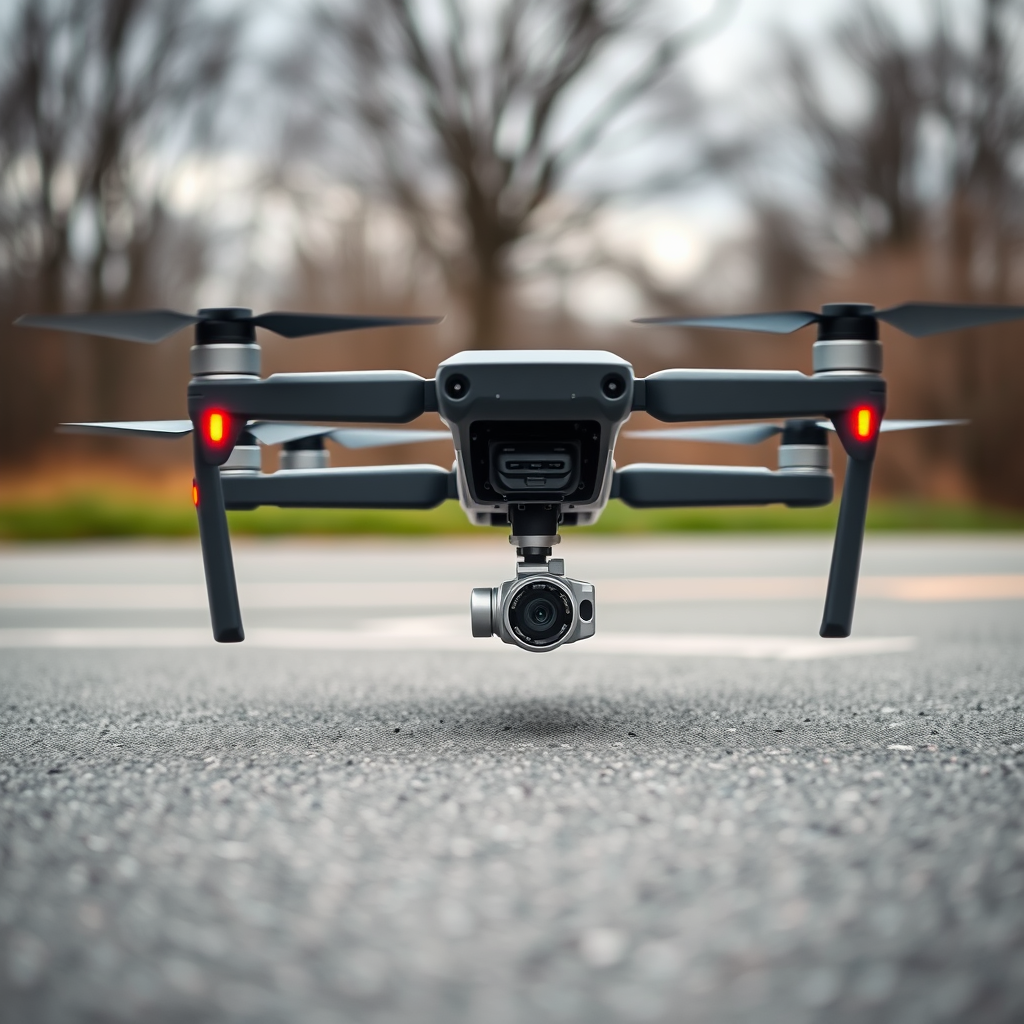
Binding refers to the connection established between a DJI drone and its specific remote controller or mobile app. This process is crucial for safe and reliable operation, as it ensures that the drone receives commands exclusively from the intended controller, preventing interference from other devices. During the binding process, unique identifiers are exchanged, which facilitate secure communication between the drone and the controller or app.
Understanding the binding mechanism is essential for all drone operators, as it not only affects the operational efficiency of the drone but also plays a significant role in maintaining safety standards during flight. A properly bound drone responds accurately to commands, which is vital for maneuvers such as takeoff, landing, and emergency procedures.
Steps to Unbind Your DJI Drone
Unbinding your DJI drone from its controller is a simple process that can be performed through the drone’s settings. Follow these steps to unlink your drone effectively:
1. Power On the Drone and Controller: Ensure both your drone and its controller are powered on. This is a necessary step to access the settings.
2. Access the Settings Menu: Using the controller, navigate to the settings menu. Depending on your model, this may be accessed through the DJI Go or DJI Fly app.
3. Select the ‘Linking’ Option: In the settings menu, look for options related to linking or binding. This section allows you to manage the connection between your drone and the controller.
4. Initiate Unbinding: Follow the on-screen prompts to initiate the unbinding process. Confirm any warnings or prompts that appear, as they are designed to ensure you are aware of the implications of unbinding.
5. Complete the Process: Once you have confirmed your choice, the drone will unlink itself from the controller. You may see a notification indicating that the process was successful.
It is important to note that unbinding does not reset the drone’s firmware or settings; it simply removes the connection to the current controller.
Using the DJI Fly App to Unbind
The DJI Fly app offers a user-friendly interface for managing your drone’s settings, including unbinding. Here’s how to use the app for this purpose:
1. Launch the DJI Fly App: Begin by opening the app on your mobile device that is paired with the drone.
2. Connect to the Drone: Ensure that your device is connected to the drone’s Wi-Fi network. This is crucial for accessing the settings.
3. Navigate to the Settings: Tap on the settings icon within the app, usually located in the upper right corner of the screen.
4. Select ‘Controller’ Settings: Within the settings menu, find the option for ‘Controller’ settings. This section contains the binding options.
5. Unbind the Drone: Look for the option to unlink or unbind the drone. Confirm your selection when prompted. The app will notify you once the process is complete.
For a successful unbinding process, ensure your app is up-to-date and you have a stable connection throughout the procedure. This helps prevent any interruptions that could lead to incomplete unbinding.
Common Reasons for Unbinding a DJI Drone
There are several scenarios where unbinding your DJI drone may be necessary:
– Switching Controllers or Devices: If you have recently purchased a new controller or wish to use a different mobile device, unbinding allows you to connect your drone to the new equipment seamlessly. This is particularly relevant for users who may have upgraded their equipment for enhanced features or improved ergonomics.
– Troubleshooting Connection Issues: Sometimes, a drone may experience connectivity problems with its controller or app. Unbinding and then re-binding can help refresh the connection and resolve issues such as lag, unresponsiveness, or frequent disconnections.
– Preparing for Sale or Transfer: If you plan to sell or give away your drone, unbinding it from your controller ensures that the new owner can pair it with their device without complications.
What to Do After Unbinding
After successfully unbinding your DJI drone, you may wish to rebind it to a new controller or app. Here’s how to do that:
1. Power On the Drone and New Controller: Start by turning on both devices.
2. Access the Binding Mode: In the settings of the new controller or app, look for the binding mode. This may require you to press a specific button or follow a series of prompts.
3. Initiate the Binding Process: Follow the on-screen instructions to bind the new controller to the drone, ensuring that you have the drone and controller within close range during this process.
4. Check Functionalities: Once the binding is complete, conduct a few tests to ensure that the drone responds correctly to the new controller or app.
It is also essential to verify that your drone’s firmware is up to date after any binding or unbinding process. This helps maintain optimal performance and compatibility with the controller.
Troubleshooting Unbinding Issues
During the unbinding process, you may encounter some common issues. Here are a few potential problems and solutions:
– Unbinding Fails: If the unbinding process fails, ensure that both the drone and controller are powered on and adequately connected. Try restarting both devices and repeating the process.
– Settings Not Accessible: If you cannot access the settings menu, check that your app is updated to the latest version. Also, verify that your mobile device is properly connected to the drone.
– Persistent Connection Issues: If you continue to face connection problems after unbinding and rebinding, consider resetting the drone to factory settings as a last resort. This action will erase all settings, so make sure to backup any important data first.
Safety and Precautions When Unbinding
When unbinding your DJI drone, it’s crucial to observe certain safety measures to avoid complications:
– Ensure Firmware is Up-to-Date: Before performing any binding or unbinding operations, check that your drone’s firmware is current. Updated firmware can prevent issues and ensure the drone operates correctly with the controller.
– Perform Operations in a Safe Environment: Conduct the unbinding process in an open area away from obstacles and other electronic devices. This reduces the risk of interference and ensures a smooth operation.
– Have a Backup Plan: If you anticipate needing to unbind your drone frequently, consider keeping a backup of your settings or configurations that can easily be restored if needed.
In conclusion, unbinding a DJI drone is a manageable task that can be accomplished with the right approach. Whether you are troubleshooting issues or setting up a new controller, following the outlined steps will ensure a smooth process. Understanding the importance of binding, the steps to unbind and rebind, and the common issues encountered can significantly enhance your drone operation experience. For more tips and guides on drone operation, stay tuned to our blog!
Frequently Asked Questions
What does it mean to unbind a DJI drone?
Unbinding a DJI drone refers to the process of disconnecting the drone from its remote controller or mobile device. This is typically done to reset the connection, transfer ownership, or prepare the drone for use with a different controller. The unbinding process ensures that the drone is no longer paired with the previous controller, which is essential for security and functionality.
How do I unbind my DJI drone from my remote controller?
To unbind your DJI drone from the remote controller, power on both the drone and the controller, then navigate to the settings menu in the DJI GO or DJI Fly app. Look for the “Linking” or “Binding” option, and select “Unbind” or “Forget Device.” Follow the prompts to complete the process. Make sure to check your drone’s model-specific instructions, as the steps may vary slightly.
Why would I need to unbind my DJI drone?
You may need to unbind your DJI drone for several reasons, including selling the drone, troubleshooting connectivity issues, or switching to a different remote controller. Unbinding ensures that the previous controller is no longer linked, preventing unauthorized access and ensuring that the new controller can establish a proper connection without interference.
What is the best way to ensure that my DJI drone is properly unbound?
The best way to ensure that your DJI drone is properly unbound is to follow the unbinding process in the DJI app and confirm that the drone no longer responds to the previous controller. After unbinding, try to link the drone with a new controller to verify that the connection is established successfully. Additionally, performing a factory reset on the drone can further ensure all previous bindings are cleared.
Which DJI drones can I unbind, and are there differences in the process?
Most DJI drones, including popular models like the Mavic series, Phantom series, and Mini series, can be unbound. However, the unbinding process can vary slightly depending on the model and the app used (DJI GO, DJI Fly, etc.). It’s essential to consult the user manual or DJI’s official website for specific instructions tailored to your drone model to ensure a smooth unbinding experience.
References
- https://www.dji.com/support/faq/what-is-unbinding-and-how-do-i-unbind-my-drone
- https://en.wikipedia.org/wiki/Drone_(aircraft
- https://www.faa.gov/uas/
- https://www.techradar.com/news/how-to-fly-a-drone-safely
- https://www.theverge.com/2021/1/5/22215305/dji-drone-unbind-controller-how-to-fly
- https://www.wired.com/story/drone-technology/
- https://www.dronepilotgroundschool.com/what-is-drone-binding-and-unbinding/
